Custom Field
Looking for the conceptual overview of what Schema is and why it matters? See Custom Fields & Schema.
Welcome to the Custom Field section!
This guide walks you through creating custom fields in LightMesh. You can create custom fields for Subnets, IP Assignments, Zones, Sites, Datacenters, Customers, and Support Groups.
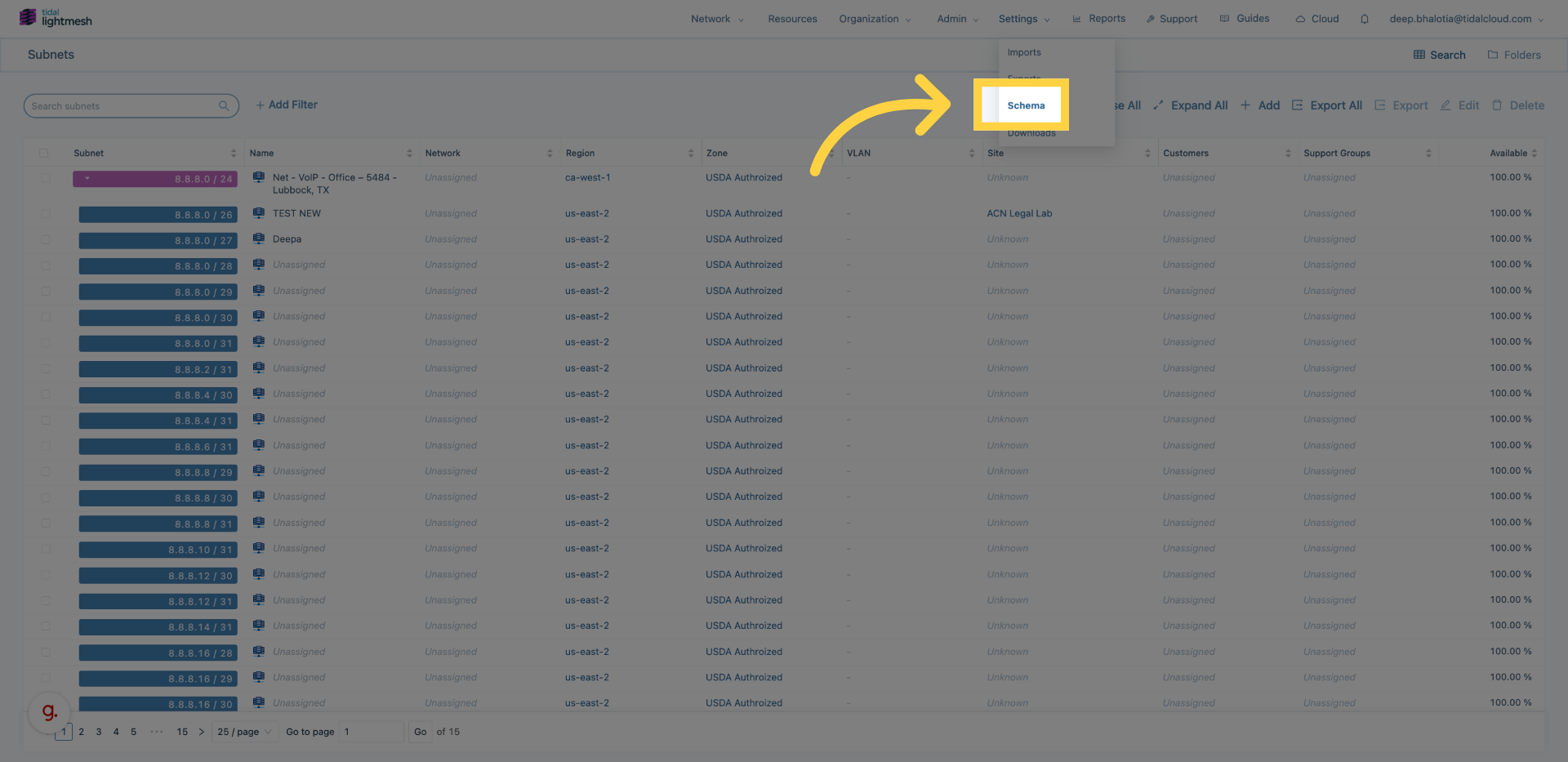
1. Open Configuration > Schema menu
Click here to open the Schema menu.
2. Access Subnet Configuration
Click here to open the Subnet configuration section.
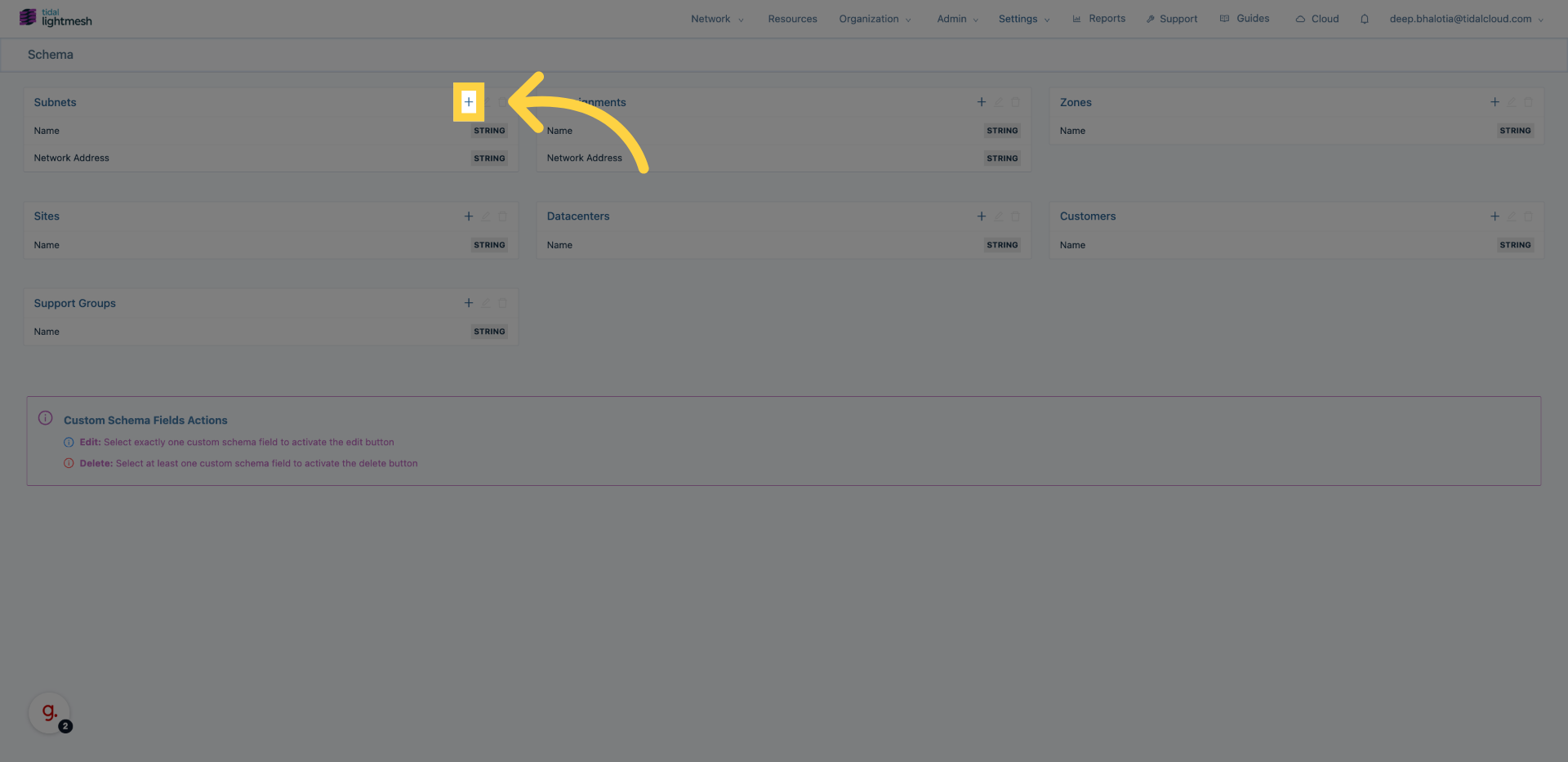
3. Initiate New Custom Subnet field
Click here to start creating a new custom field for Subnets.
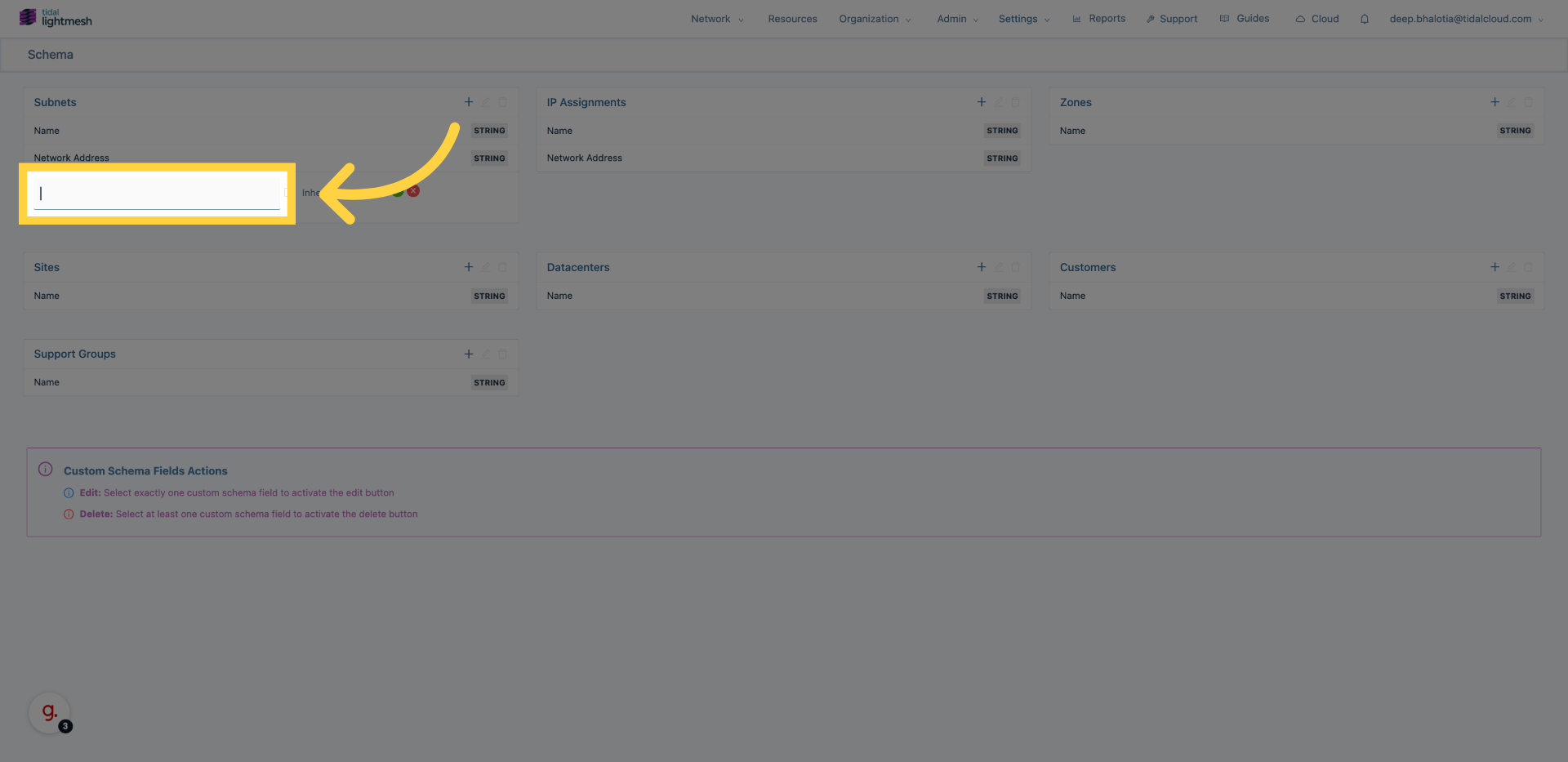
4. Enter the custom field name
Fill out the name for the custom field.
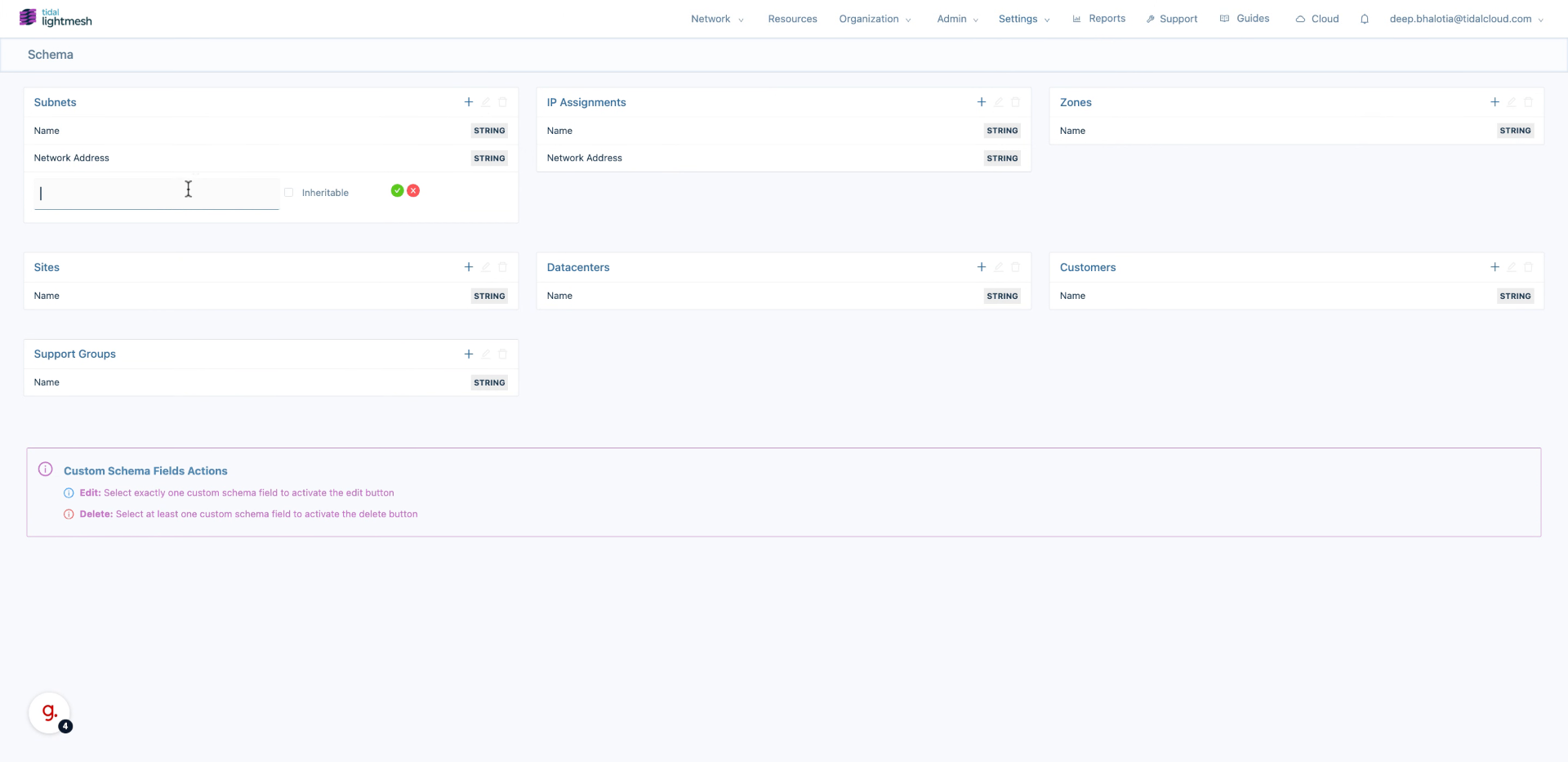
5. Enable Inheritable Option
Enable the Inheritable option to allow child objects to inherit this field value.
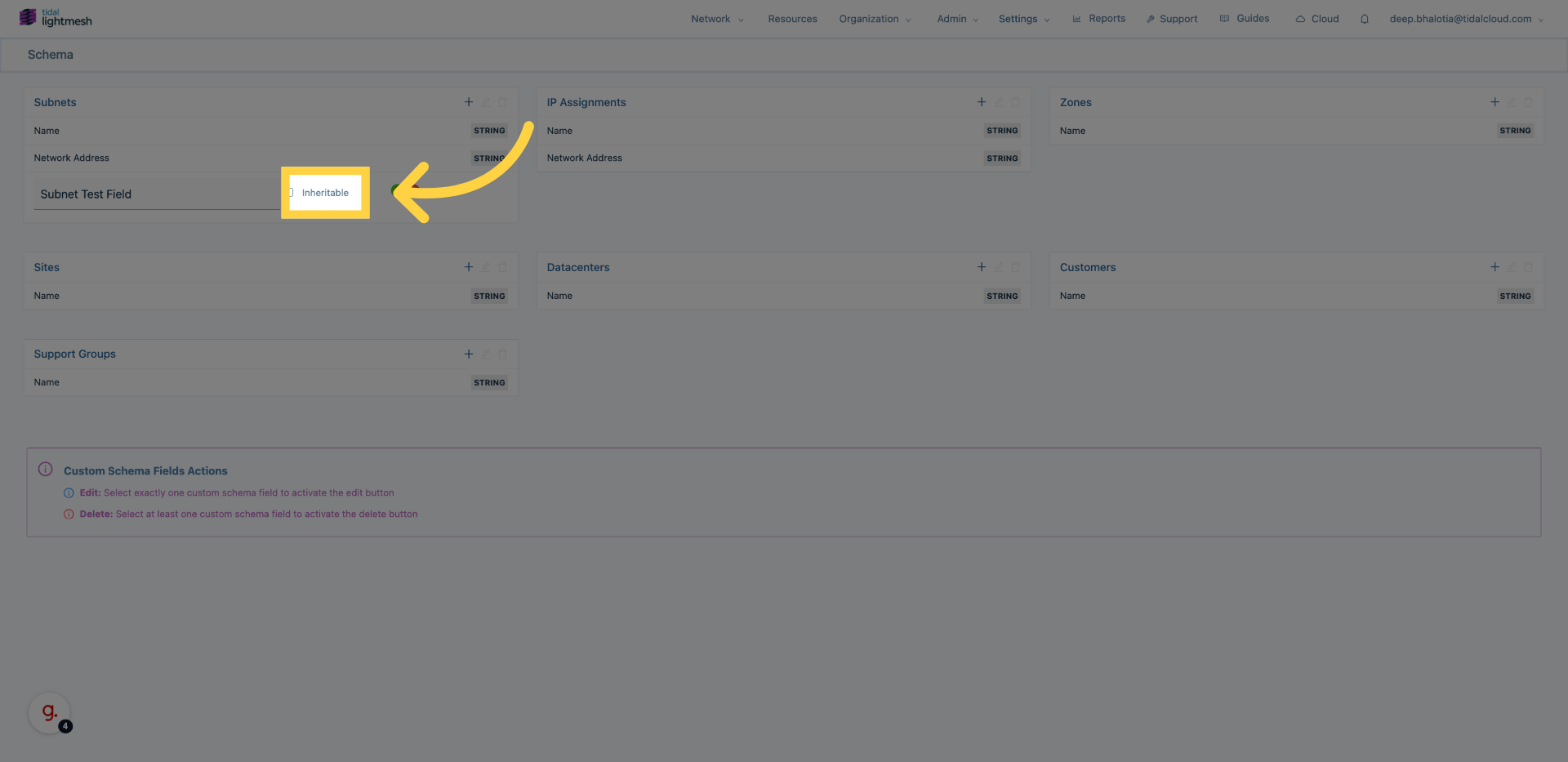
6. Proceed to Next Step
Click Save to create the field.
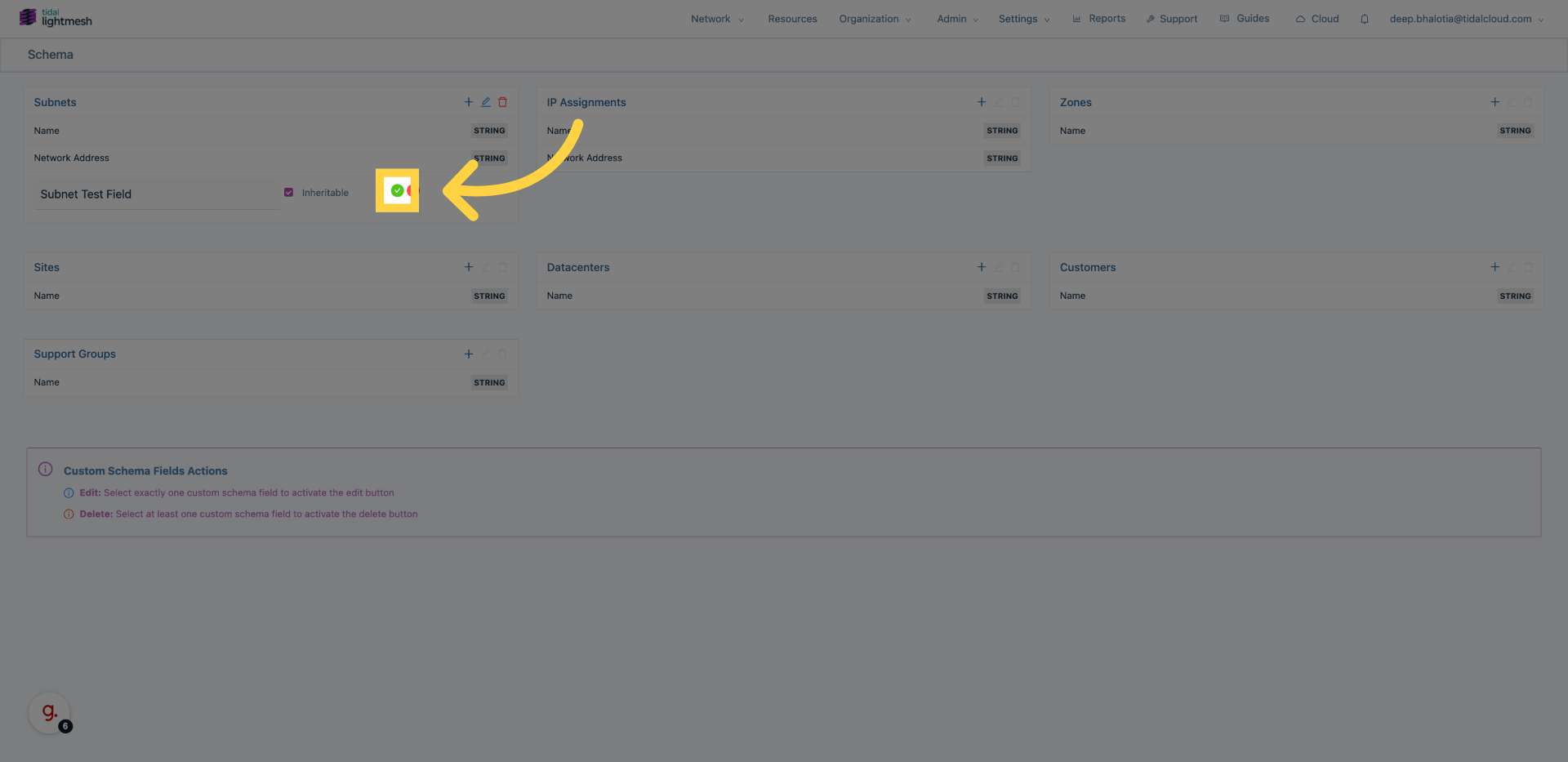
7. (Optional) Create custom fields for other endpoints
On the Schema page, click + (Add custom field) on the entity you want to extend, for example IP Assignments.
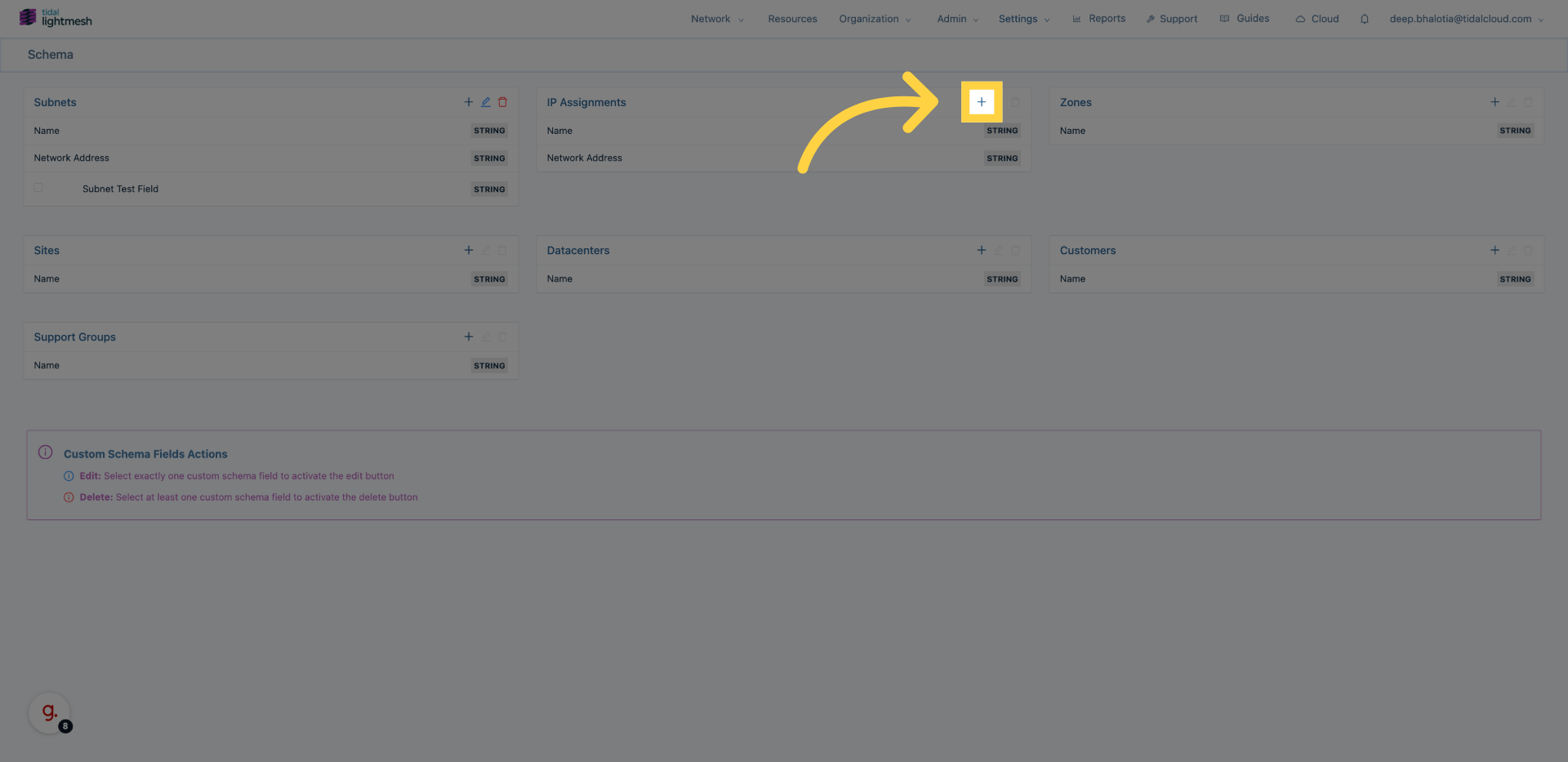
8. Choose endpoint and define field name
In the Add custom field drawer, enter the field name (for example, Asset Tag) and choose a field type. Tick Required if a value must be entered.
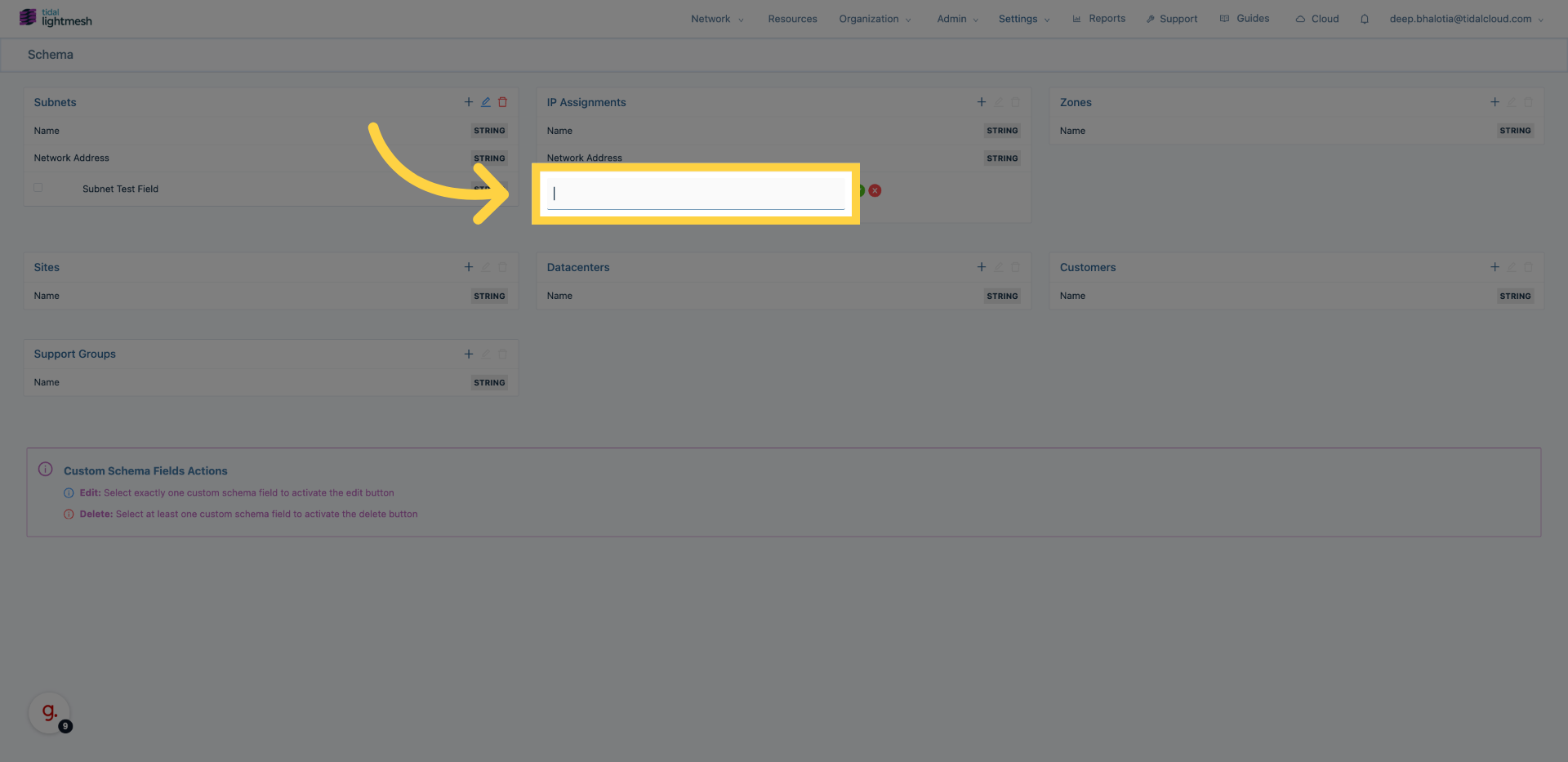
9. Save field configuration
Click Save to create the field.
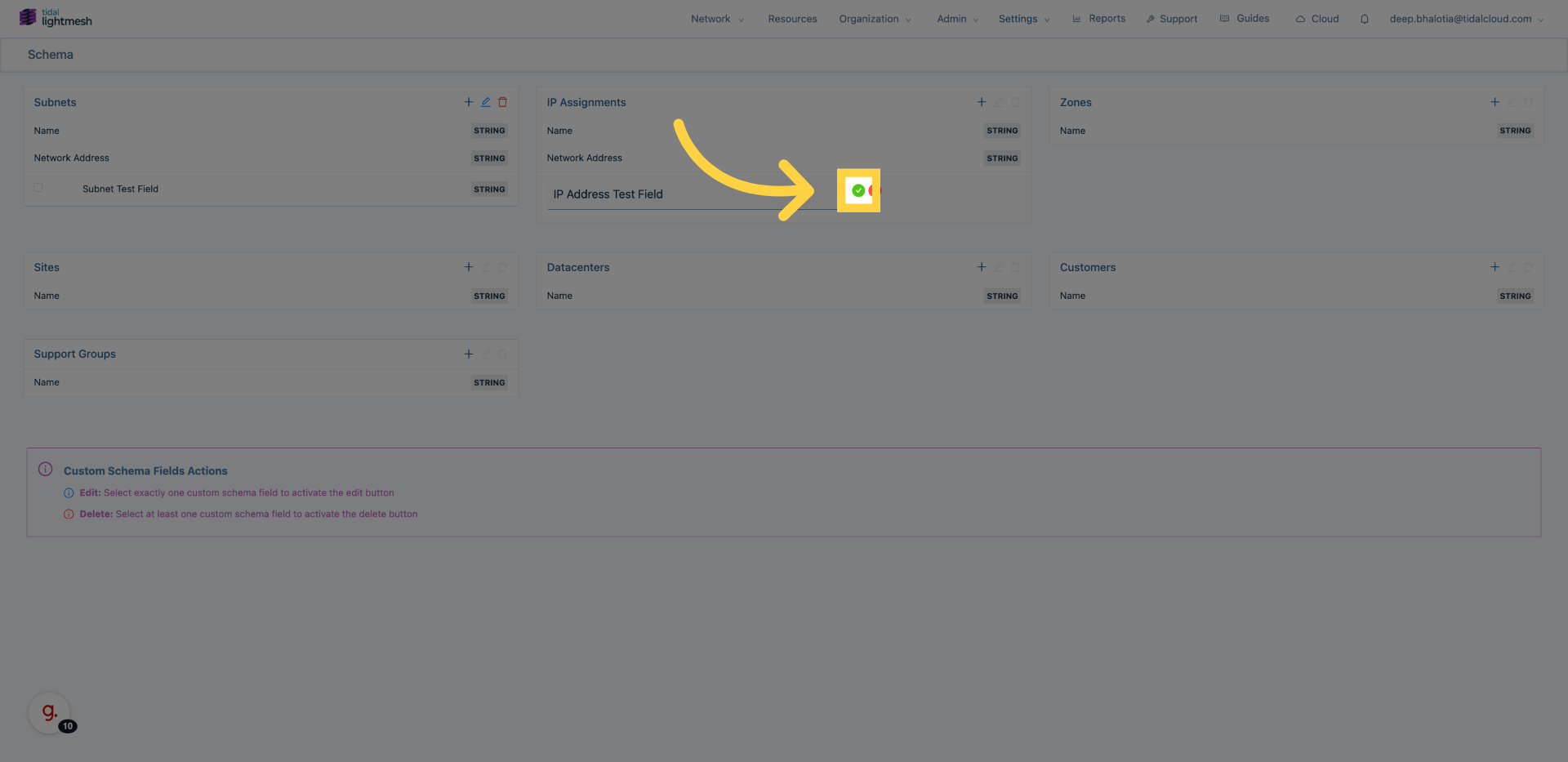
10. Verify the field is available
Confirm the new custom field appears in that entity’s card on the Schema page.
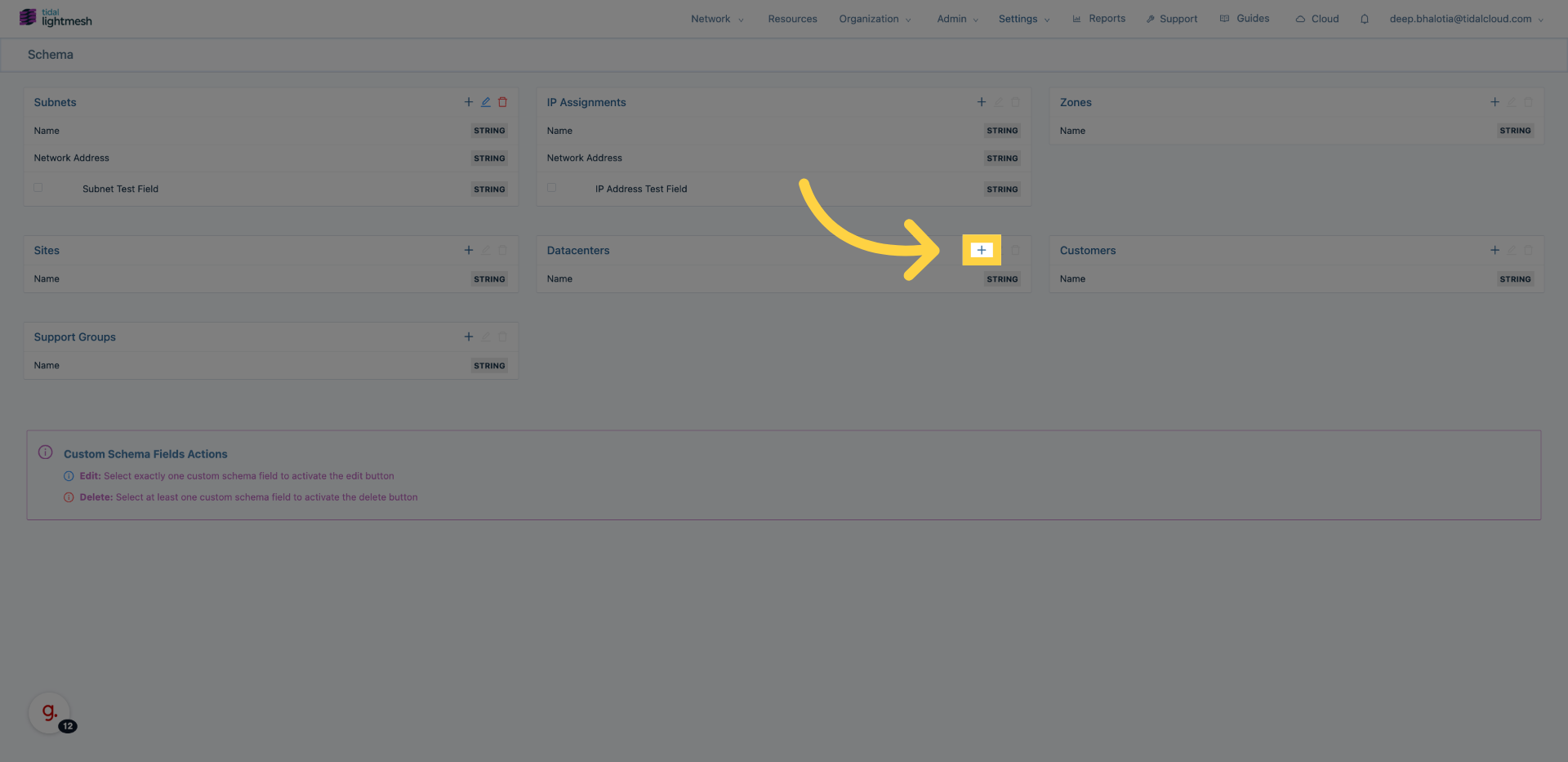
11. Repeat as needed
Repeat for any other entity that needs custom metadata, for example a Rack Unit field on Datacenters.
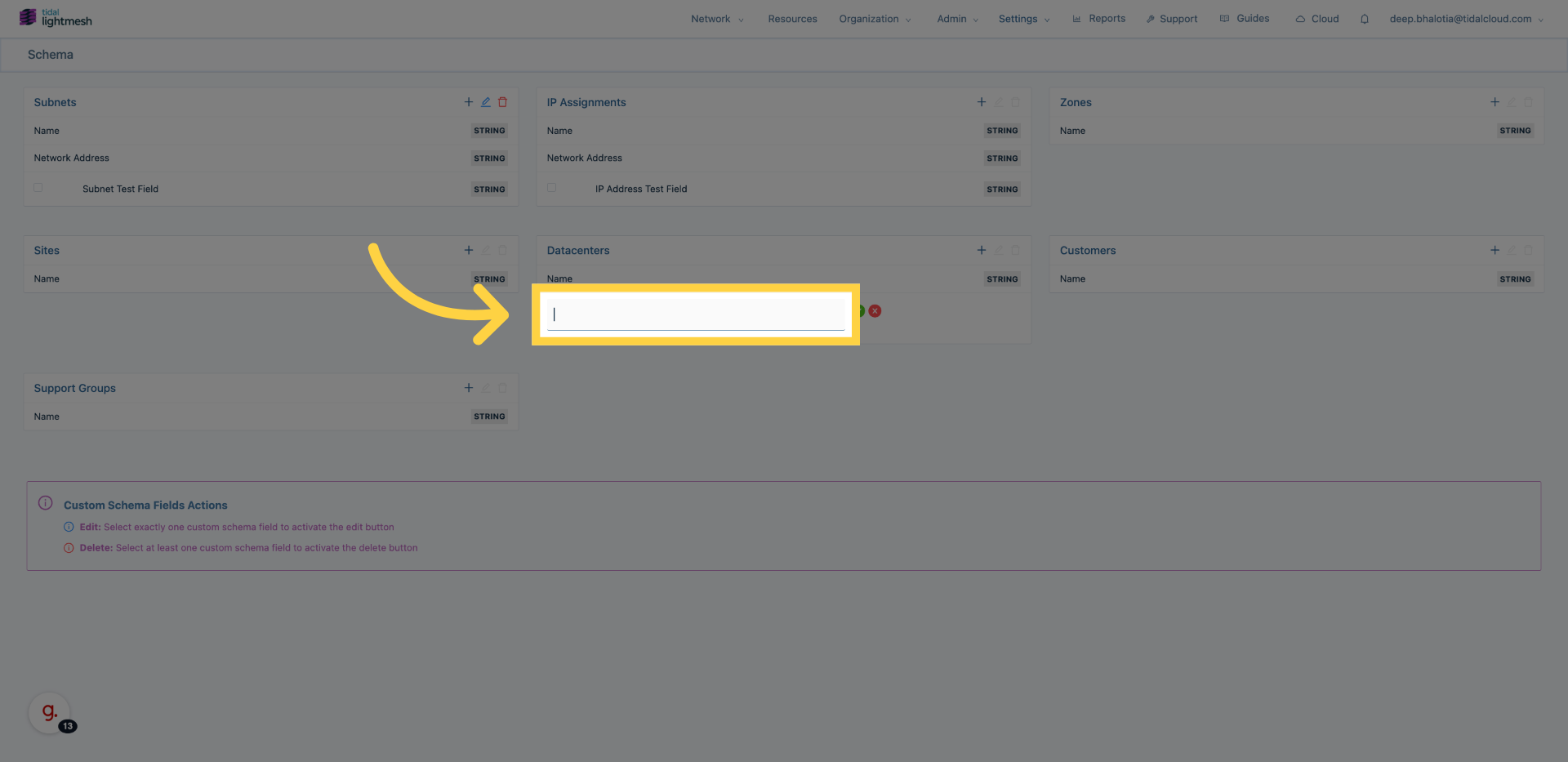
12. Finalize Configuration
Confirm each new field appears under its entity. Use the arrows to reorder fields, the pencil to edit, or the trash icon to delete.
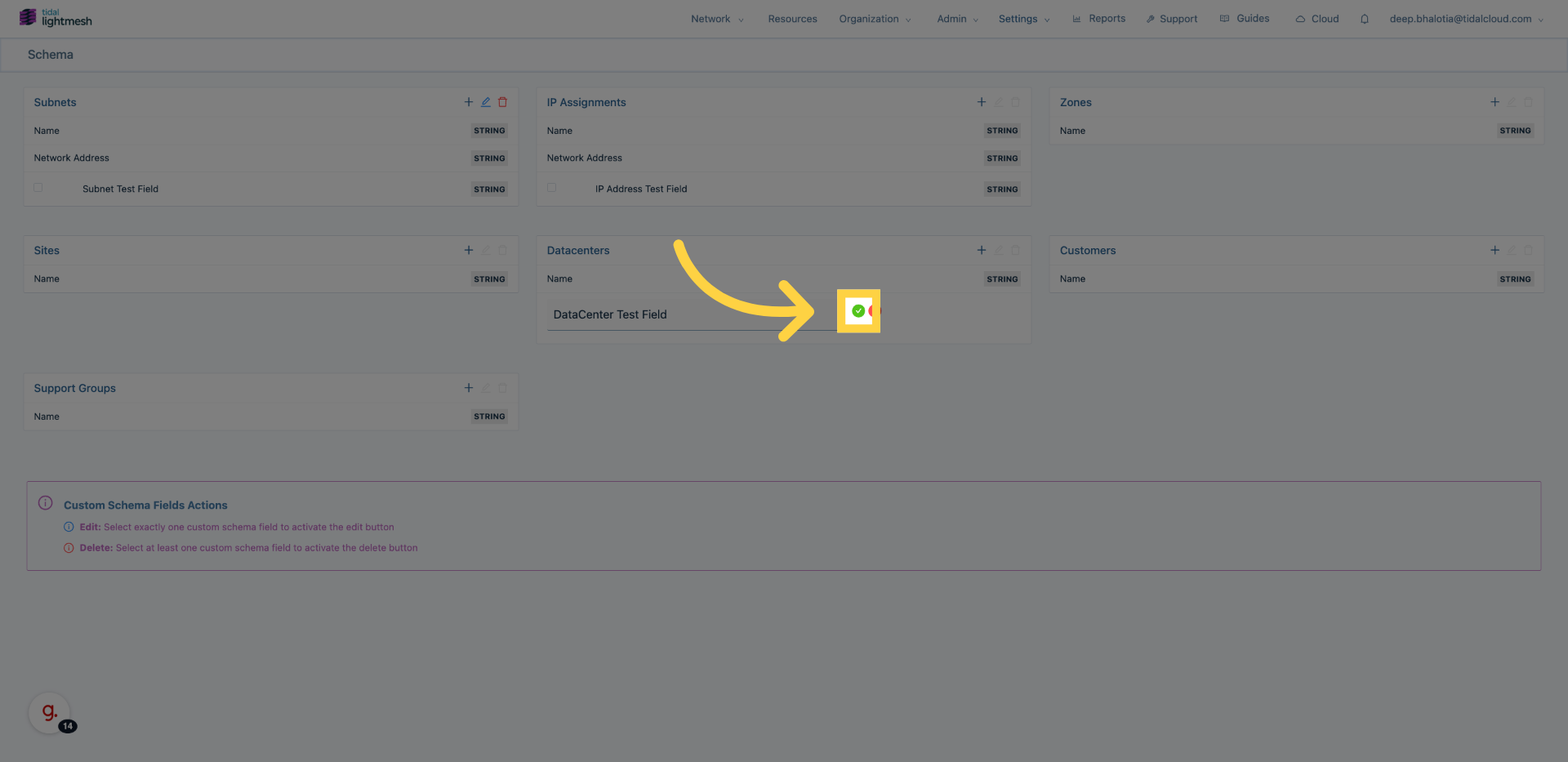
You have successfully created a custom field in LightMesh and learned the repeatable workflow for defining custom fields across endpoint types.