LightMesh alerting for IPAM operations
Alerting
LightMesh alerting keeps IPAM events visible before they become outages or ticket queues. It is not generic endpoint or host monitoring: rules fire on subnet capacity, IP request workflow, and NMAP scan results inside your tenant, with optional delivery to Slack, Microsoft Teams, email, or in-app notifications.
Why teams use alerting
Typical use cases:
- Capacity planning — Get notified when a subnet crosses utilization thresholds (for example 80%, 90%, 95%, or 99%) so you can expand or reclaim space before allocations fail.
- Request workflow — When someone with the Requestor role asks for addresses in a subnet, administrators receive alerts to approve or redirect the work.
- Scan hygiene — After an NMAP sync (see Getting Started — scan a subnet), alert on scan completion, result counts, and conflicts so discovery issues are handled quickly.
- Stay in the app — In-app rules notify specific workspace users on the same conditions without routing through external channels.
For step-by-step training walkthroughs (including Guidde playbooks), see the Alerting training hub (also reachable at /alert/).
How alerting is organized
Alerting has three layers that work together:
- Alert destinations — Verified Slack, Microsoft Teams, or email endpoints where outbound notifications are sent.
- Alert rules — Workspace-wide rules in Admin → Alerts that tie a subnet, rule type, and destination together.
- In-app alerts — Per-subnet rules that notify selected users inside LightMesh.
Rule types
| Type | What triggers an alert |
|---|---|
| Network capacity | Utilization of IP addresses in a subnet crosses configured thresholds. |
| Network requests | A Requestor submits a request for addresses in a subnet. |
| NMAP scan results | A scan is processed; the alert summarizes result counts and highlights conflicts, if any. |
In-app notifications support the same three rule types for users who should see events in the product UI.
Setting Up Alert Destinations
Configure at least one destination before creating rules that deliver outside the app.
Supported integrations:
- Slack — Post alerts to a channel via incoming webhook.
- Microsoft Teams — Post alerts to a channel via connector webhook.
- Email — Send alerts to a verified mailbox.
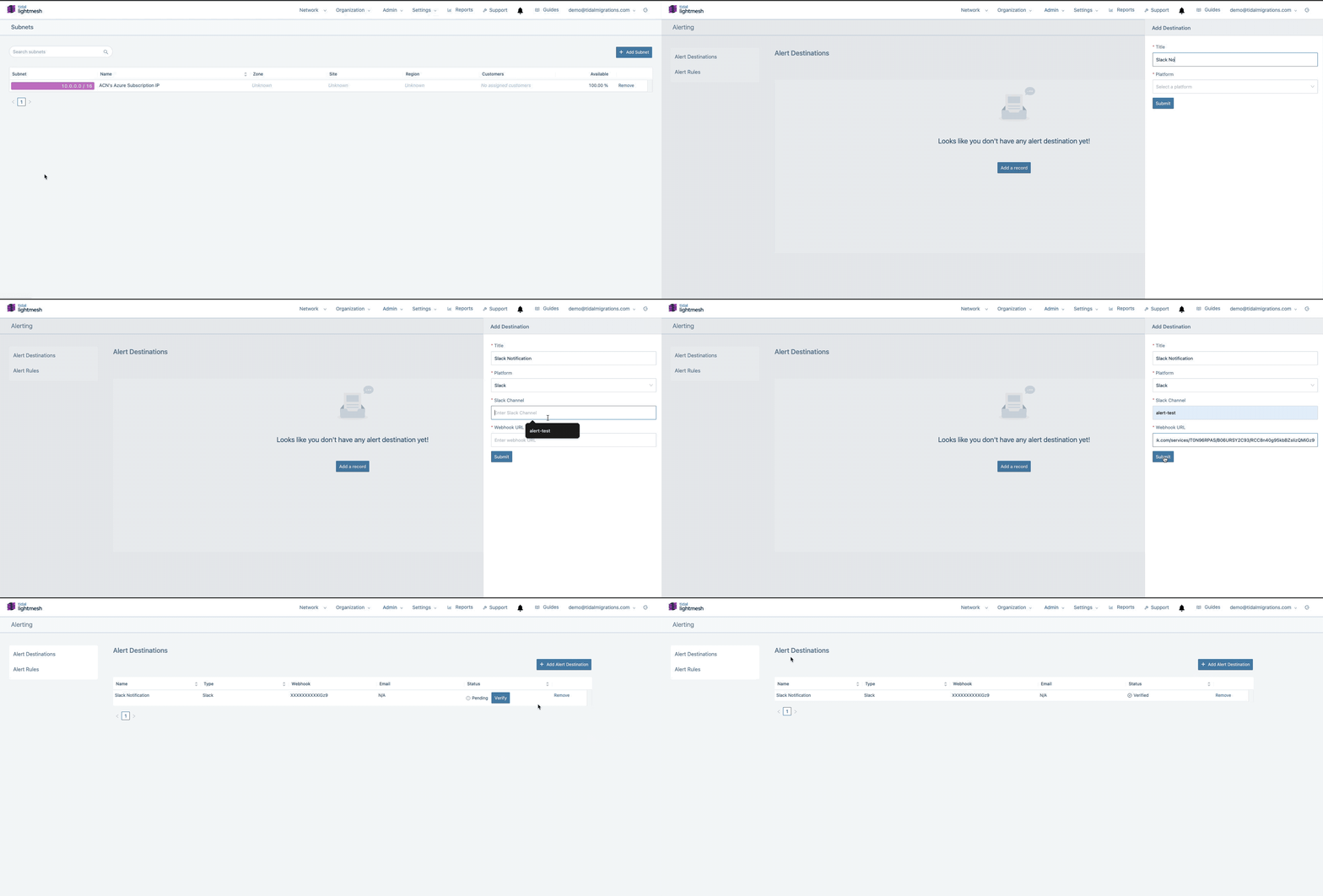
Slack Integration
- Navigate to the Admin section within LightMesh.
- Go to the Alerts submenu.
- Click on “Add Alert Destination”.
- Provide a title for this integration.
- Select “Slack” as the platform.
- Type the Slack channel you wish to receive alerts at.
- Enter the complete Webhook URL.
- Submit the form.
- Check your Slack channel for a verification code.
- Once received, return to Admin → Alerts.
- Find the pending integration and click “Verify”.
- Enter the verification code in the provided form.
- Once verified, your Slack integration is complete.
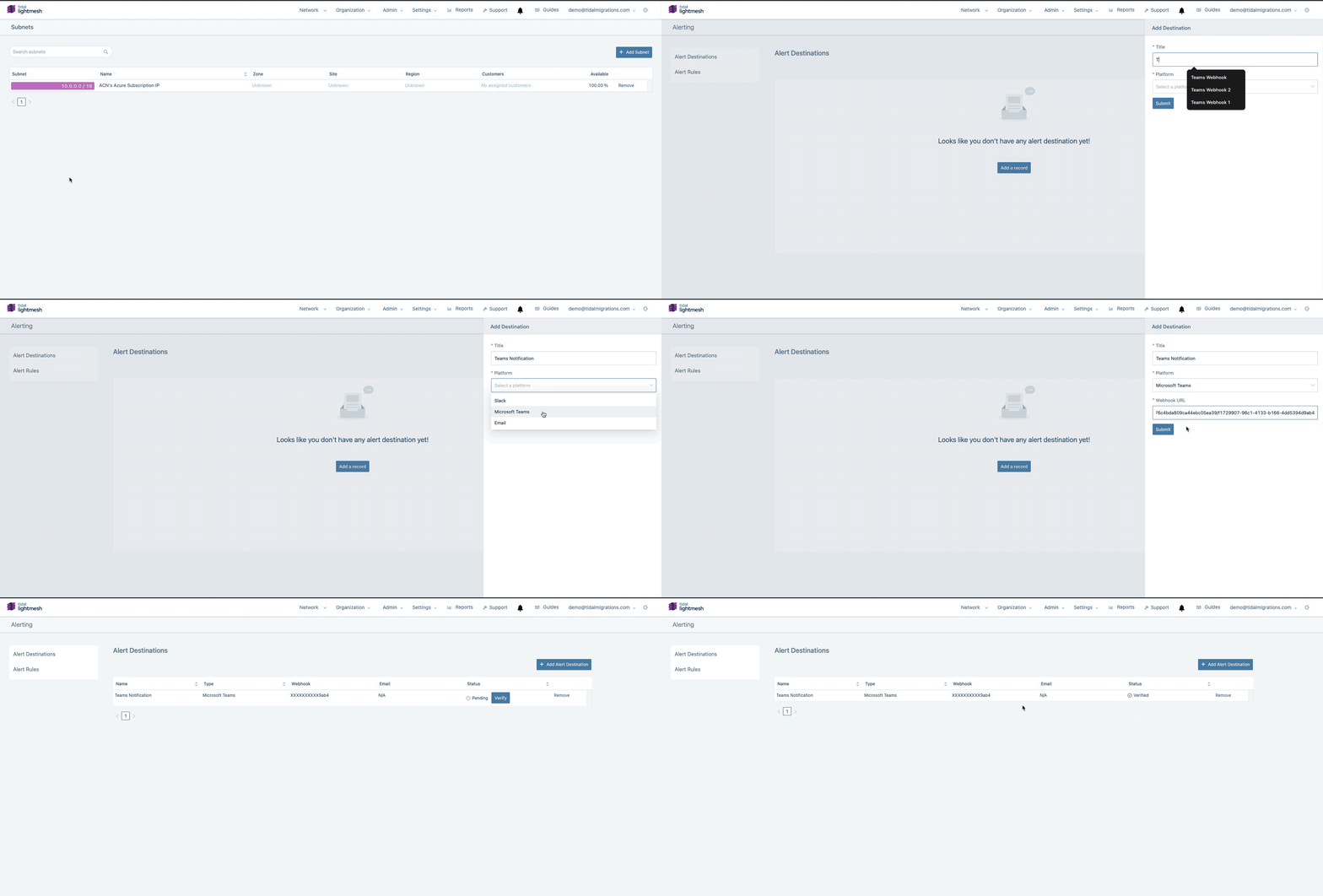
Microsoft Teams Integration
- Follow steps 1–4 as outlined above for Slack integration.
- Select “Microsoft Teams” as the platform.
- Enter the complete Webhook URL from your Teams channel connector settings.
- Submit the form.
- Check your Teams channel for a verification code.
- Once received, return to Admin → Alerts.
- Find the pending integration and click “Verify”.
- Enter the verification code in the provided form.
- Once verified, your Microsoft Teams integration is complete.
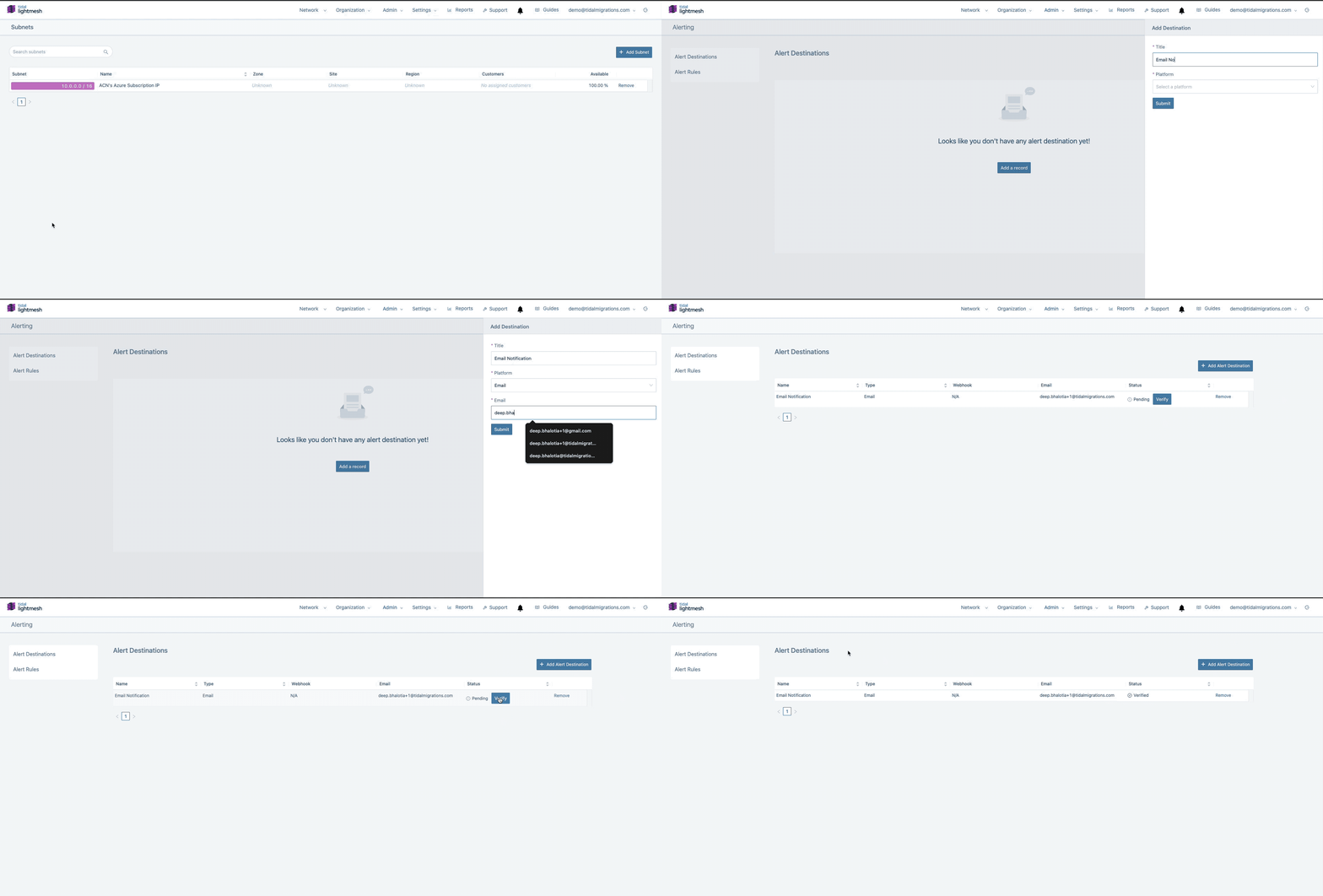
Email Integration
- Follow steps 1–4 as outlined above for Slack integration.
- Select “Email” as the platform.
- Enter the email address you wish to receive the alerts at.
- Submit the form.
- Check your email for a verification code.
- Once received, return to Admin → Alerts.
- Find the pending integration and click “Verify”.
- Enter the verification code in the provided form.
- Once verified, your Email integration is complete.
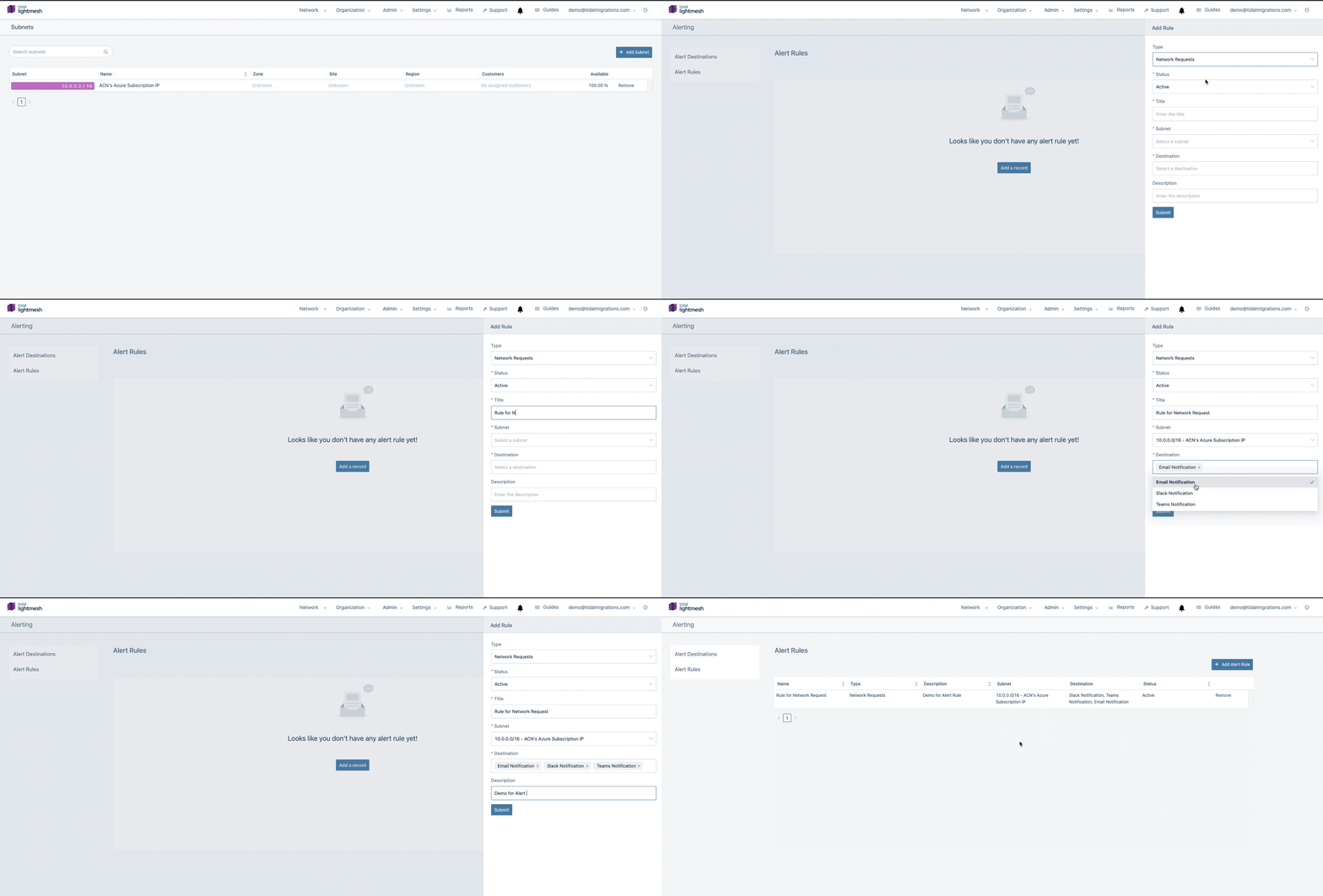
Setting Up Alert Rules
- Navigate to Admin → Alerts.
- Select “Alert Rules” from the left-hand navigation bar.
- Click on “Add Alert Rule”.
- Choose the type of rule: “Network Requests”, “Network Capacity”, or “NMAP Scan Results”.
- Select the status as either “Active” or “Inactive”.
- Provide a title for the rule.
- Choose the subnet for which you wish to receive alerts.
- Select the destination where you want to receive the alerts (Email, Teams, or Slack).
- Optionally, add a description for the rule.
- Submit the form to save the rule.
Configure alert destinations before creating rules that use external channels.
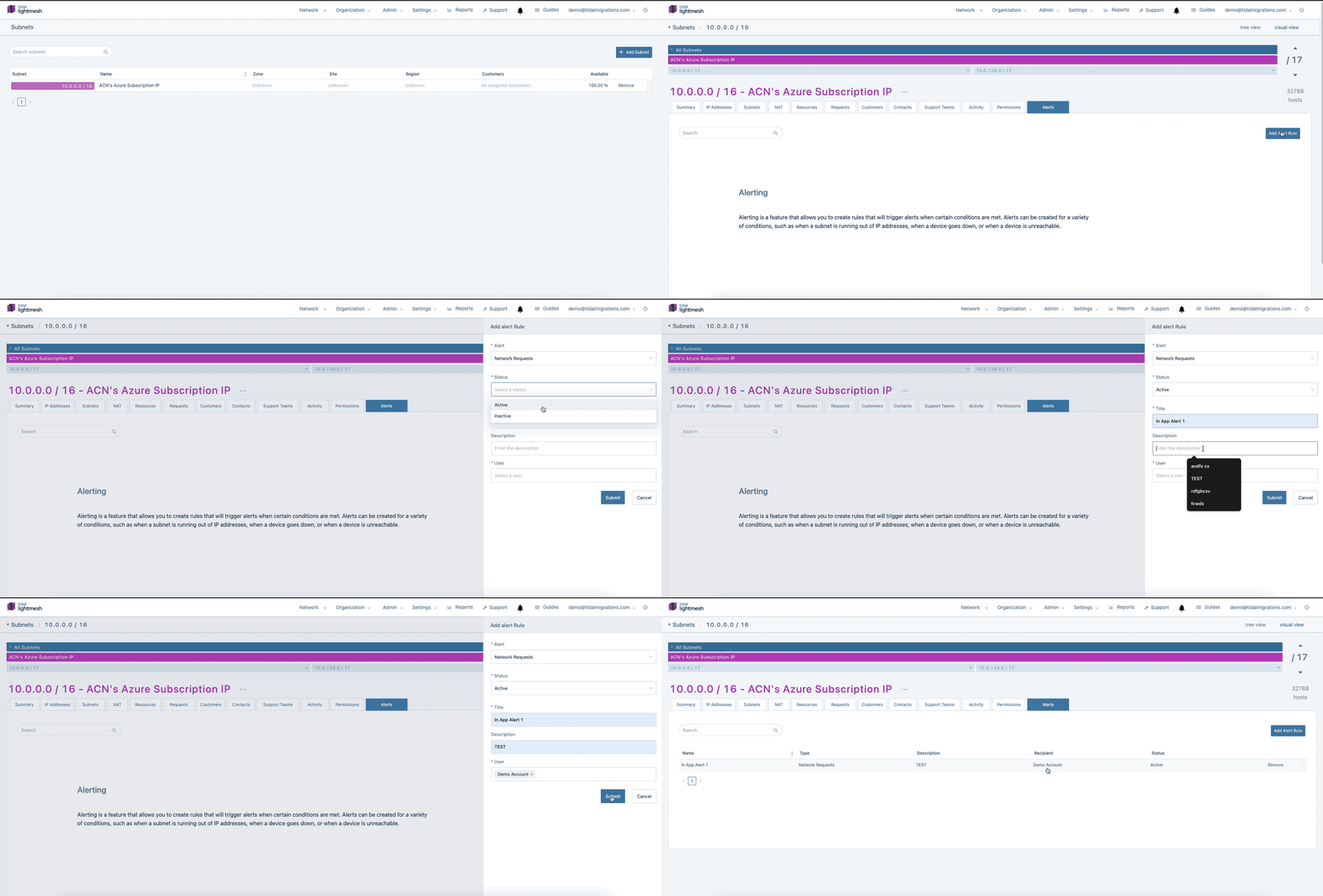
Setting Up In-App Alerts
- Navigate to the desired subnet for which you wish to receive alerts.
- Go to the “Alerts” section.
- Click on “Add Alert Rule”.
- Choose the type of rule: “Network Requests”, “Network Capacity”, or “NMAP Scan Results”.
- Choose the status as either “Active” or “Inactive”.
- Type the title for the alert.
- Optionally, add a description.
- Select the user of the workspace who will receive the alerts.
- Submit the form to save the alert rule.
Obtaining Webhook URLs
To obtain webhook URLs for Slack and Microsoft Teams integrations:
- Slack: Go to your Slack workspace’s settings and navigate to the “Incoming Webhooks” section. Create a new webhook for LightMesh and copy the generated URL.
- Microsoft Teams: In your Microsoft Teams channel settings, go to the “Connectors” tab and add a new incoming webhook connector. Generate a webhook URL and copy it for use in LightMesh.