Configure Microsoft / Azure AD sign-in for self-hosted LightMesh
Microsoft Entra ID SSO
Set up Microsoft Entra ID (Azure AD) for self-hosted LightMesh — secret-based or certificate-based — then enable it from the LightMesh UI or environment variables.
Self-hosted LightMesh supports Microsoft Entra ID (Azure AD) login. You choose one Azure AD type (secret or certificate). You can turn it on from the UI, from environment variables, or migrate from env to the UI later.
Azure AD type (pick one)
| Type | What Azure needs | LightMesh redirect URI |
|---|---|---|
| Secret-based | App (client) ID + client secret + Directory (tenant) ID | {API_URL}/auth/microsoft/callback |
| Certificate-based | App (client) ID + public cert in Azure + private key in LightMesh | {CLIENT_URL}/auth/redirect |
LightMesh configuration (UI preferred; env still supported)
| How | When to use | Notes |
|---|---|---|
| UI — Account → Sign-in Methods | Preferred for most installs | You must already have a local Owner/Admin account (email/password or another non–Azure AD method). Sign in with that account, then enable Azure AD. No restart after save. |
| Environment variables | Automation, air-gapped bootstrap, or no UI access yet | Restart LightMesh after changes. Existing env-only installs keep working. |
| Env → UI | Migrate an env-based install into Sign-in Methods | Env values are not imported into the form. An enabled UI config takes precedence over env for that mode; you can remove the env vars later. See Moving from environment variables to the UI. |
Before you enable Microsoft login: set
INVITE_ONLY=true(recommended), or understand what happens without it. With invite-only off, LightMesh creates every first-time Microsoft user as an admin and links them to the primary organization as Owner. Restrict who can authenticate in Entra (single tenant + assignment required) and keep invite-only on unless you intentionally want that auto-provisioning.
SaaS: Personal Microsoft linking on SaaS is different — see Sign-in Methods → Microsoft. This page is self-hosted organization-wide Azure AD only.
Azure AD type: secret-based
1. Register the app (single tenant)
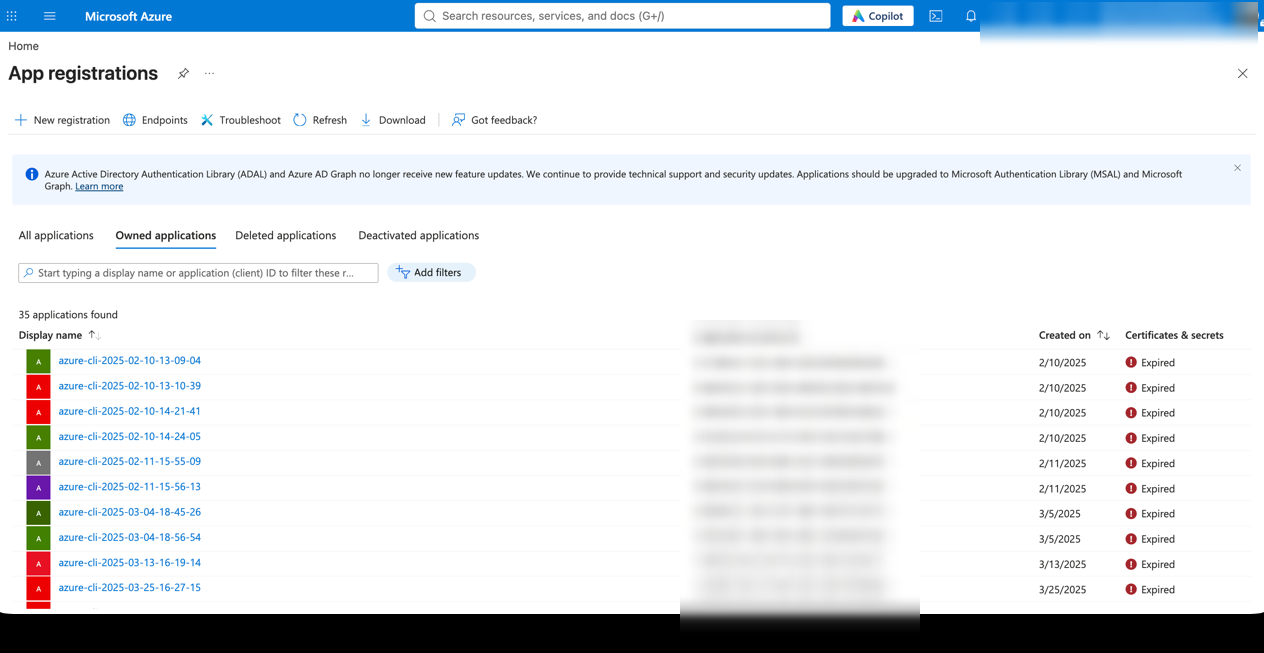
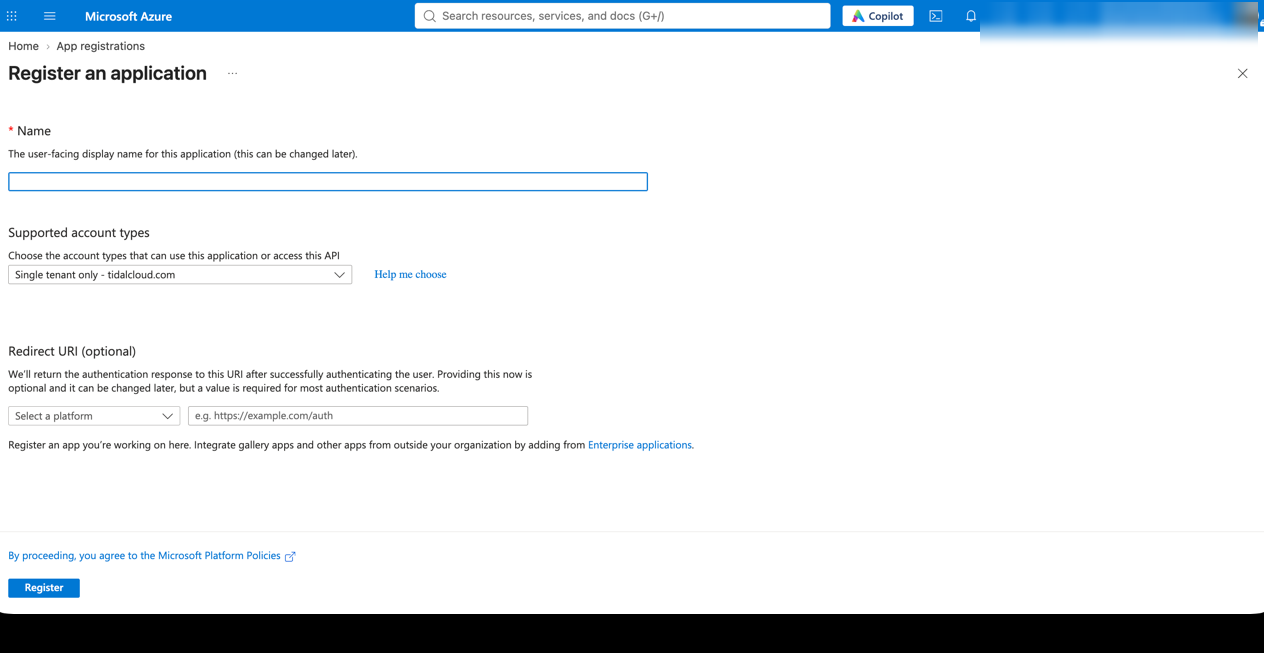
Sign in to portal.azure.com. Open Microsoft Entra ID → App registrations → New registration (same path as certificate mode).
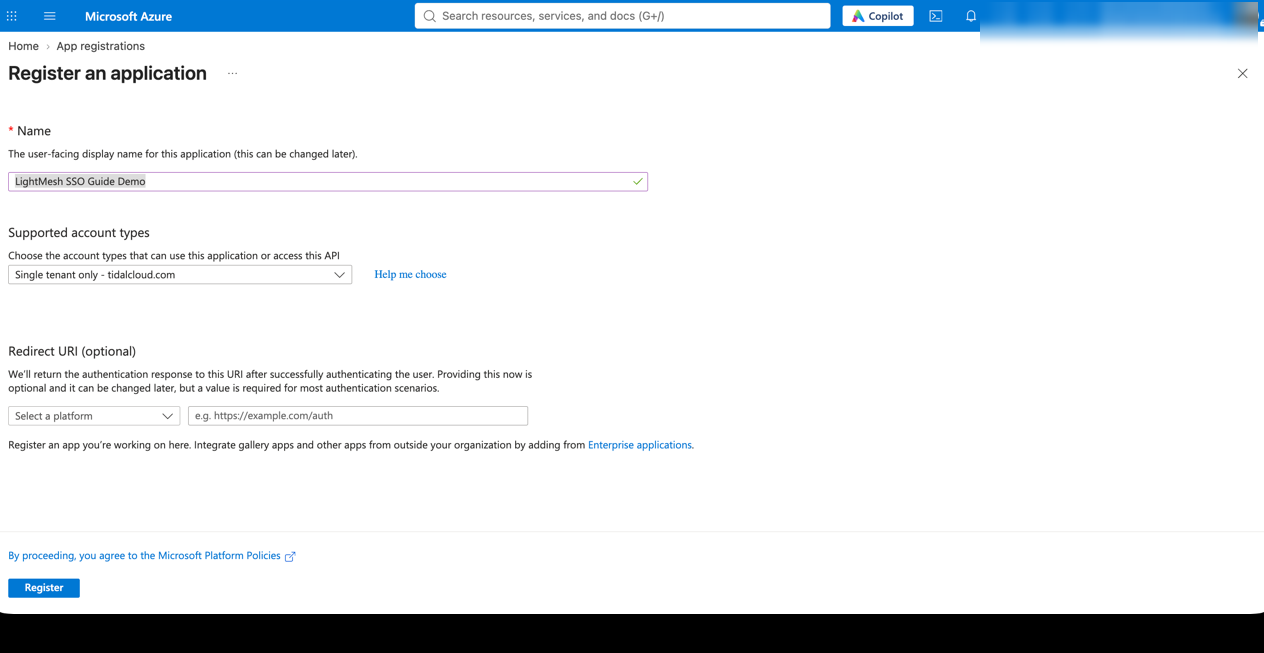
When you register:
- Supported account types: choose Accounts in this organizational directory only (Single tenant). Do not use multi-tenant or personal Microsoft accounts for self-hosted LightMesh.
- Add a Web redirect URI (next step), then create the app.
2. Redirect URI
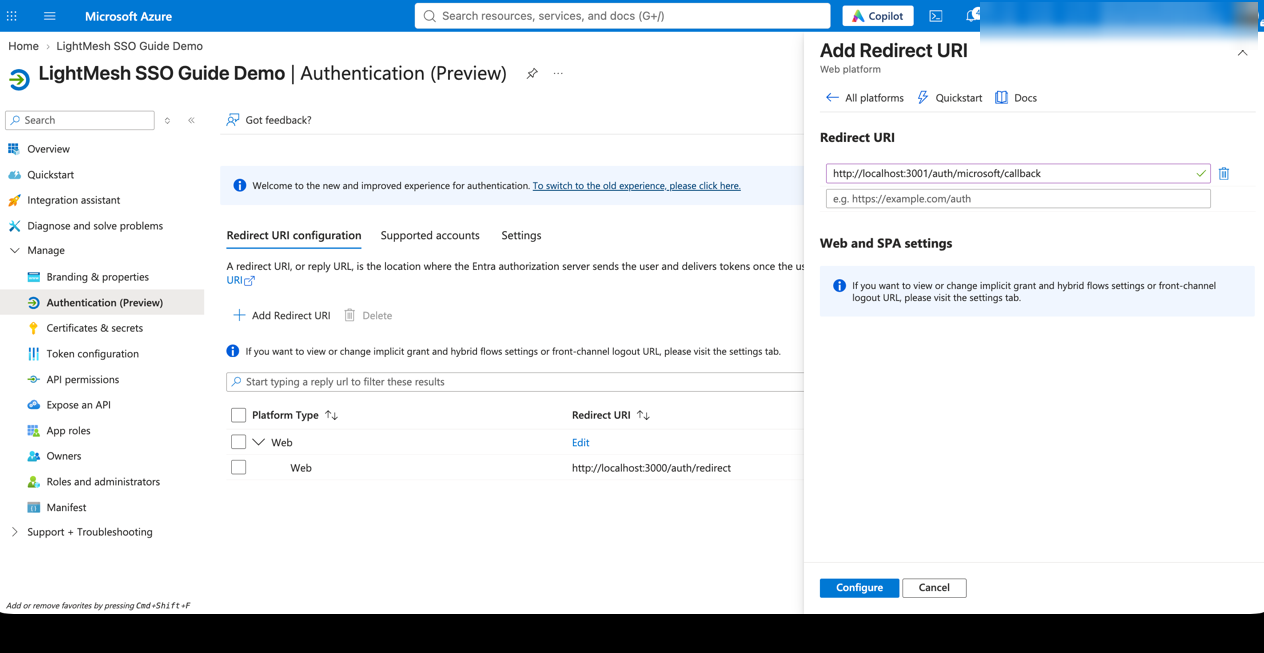
Add a Web redirect URI:
https://<your-lightmesh-api-host>/auth/microsoft/callbackLocal example: http://localhost:3001/auth/microsoft/callback
3. Client secret
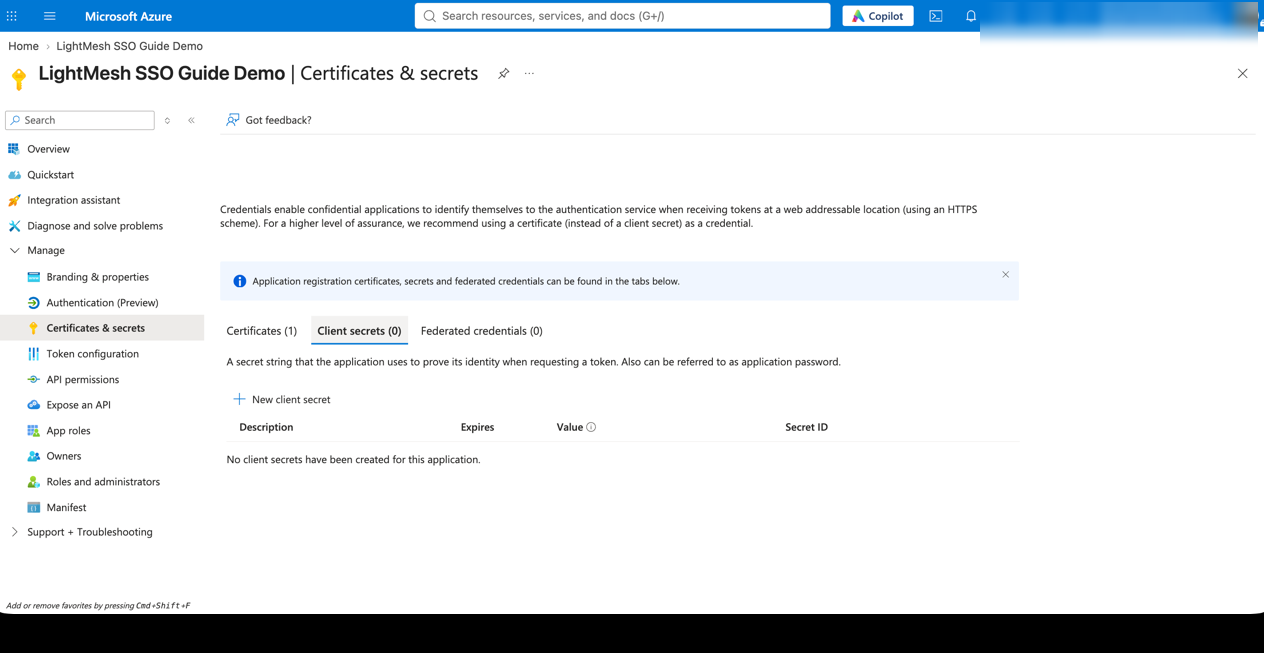
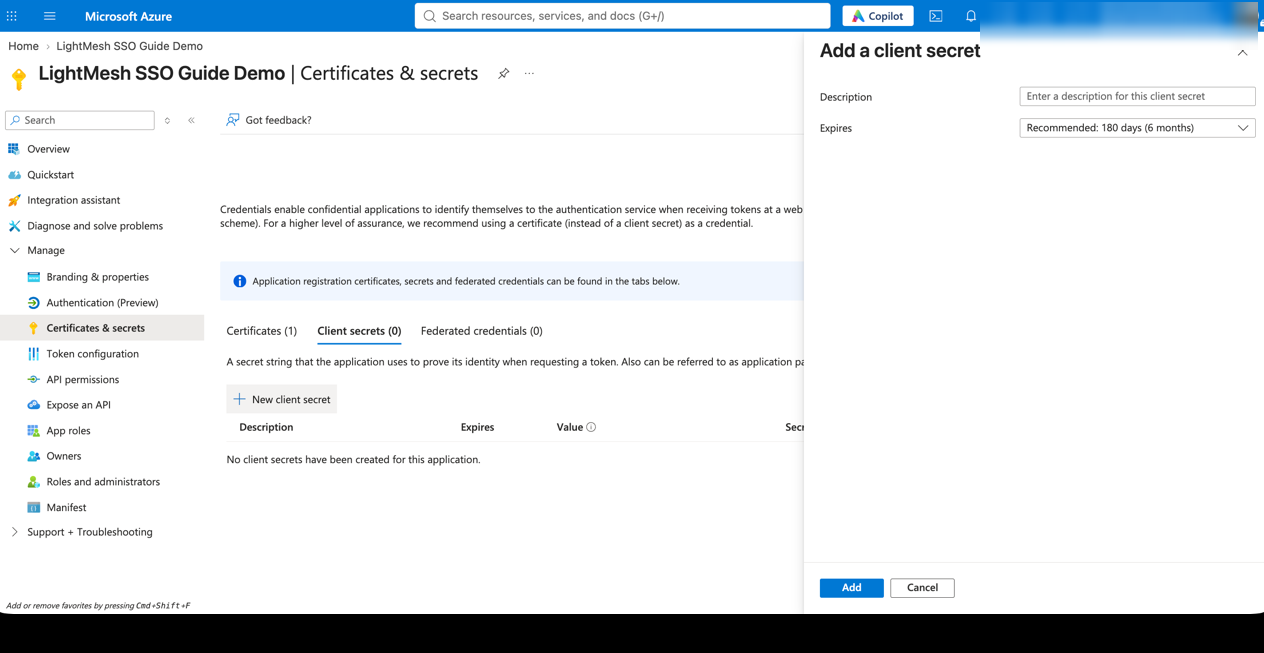
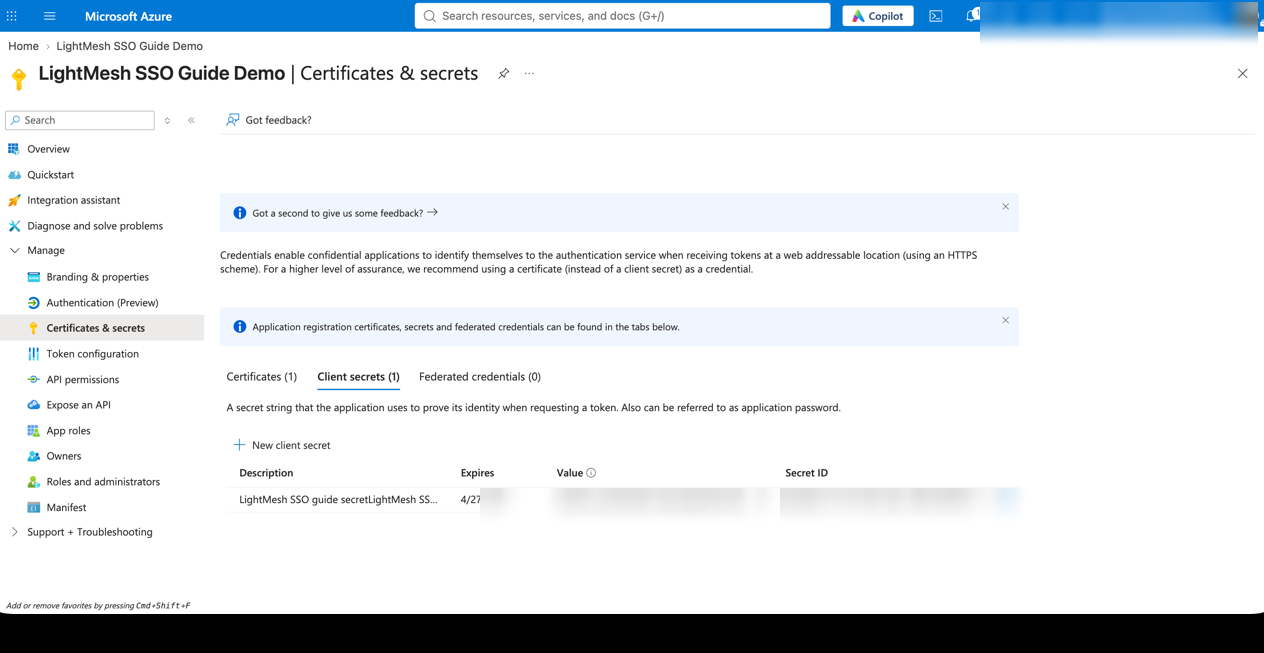
Certificates & secrets → Client secrets → New client secret. Copy the Value immediately (Azure shows it once).
4. Application (client) ID and Directory (tenant) ID
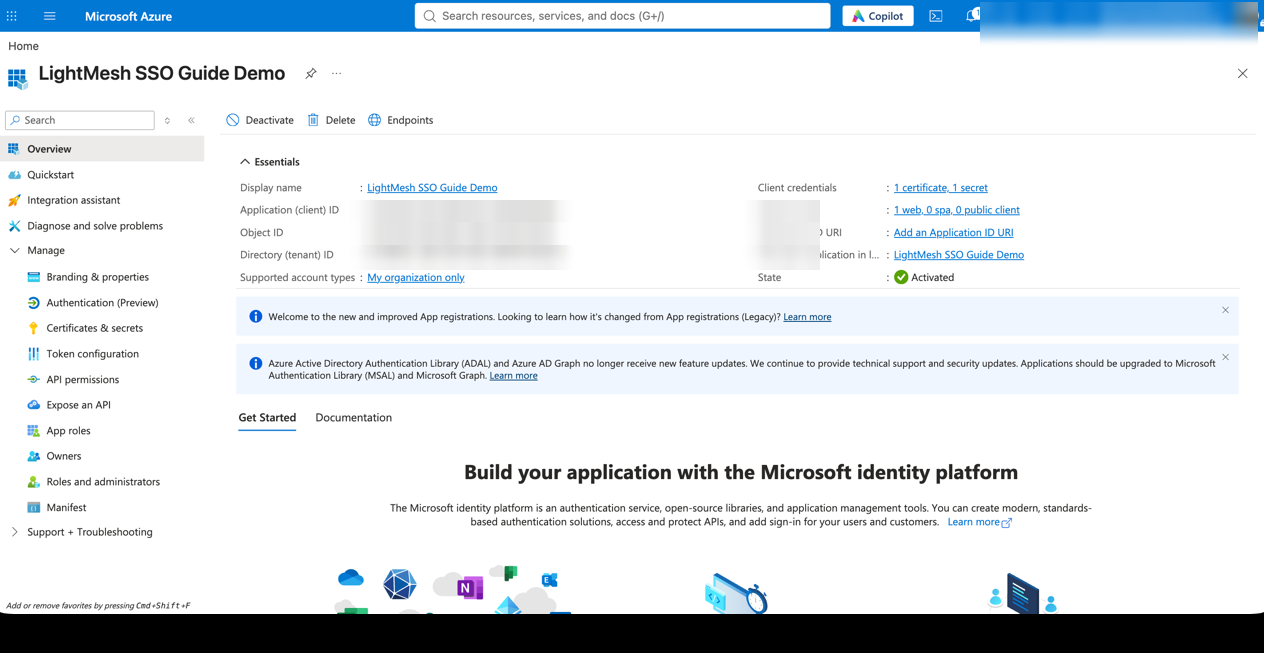
From Overview, copy both IDs. Always use your Directory (tenant) ID GUID (or verified domain) in LightMesh — never common, organizations, or consumers.
5. Who can sign in (required)
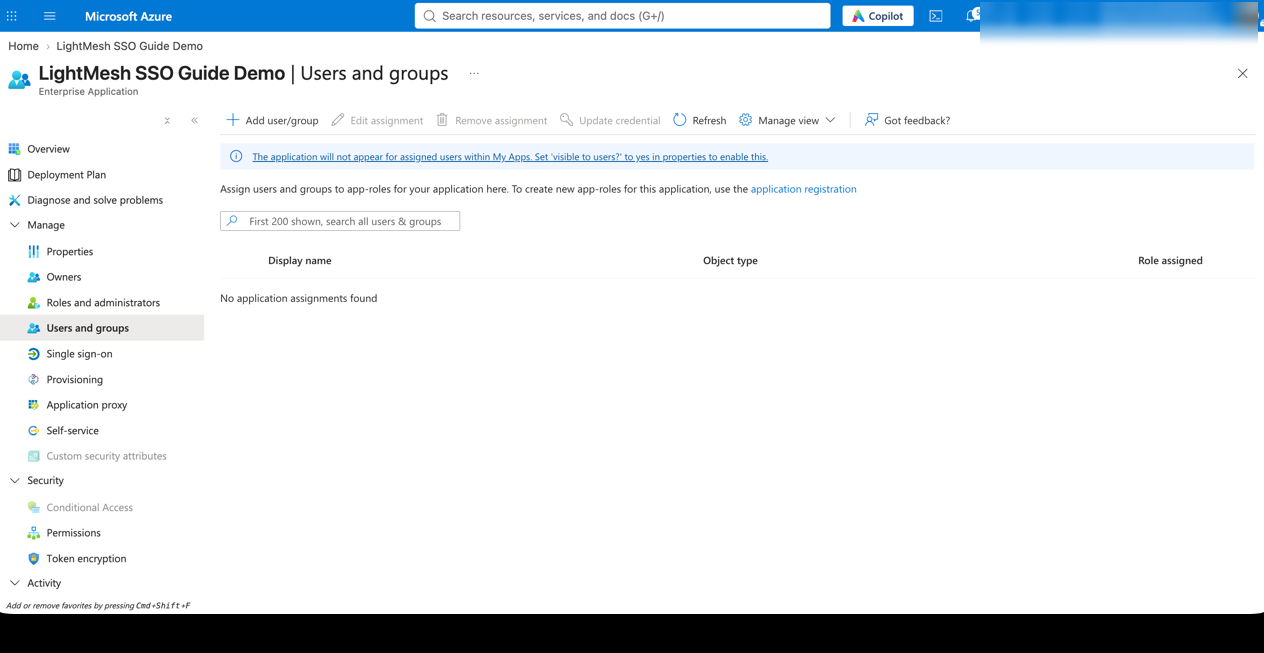
- Open Enterprise applications → (your app) → Properties, and set Assignment required? to Yes.
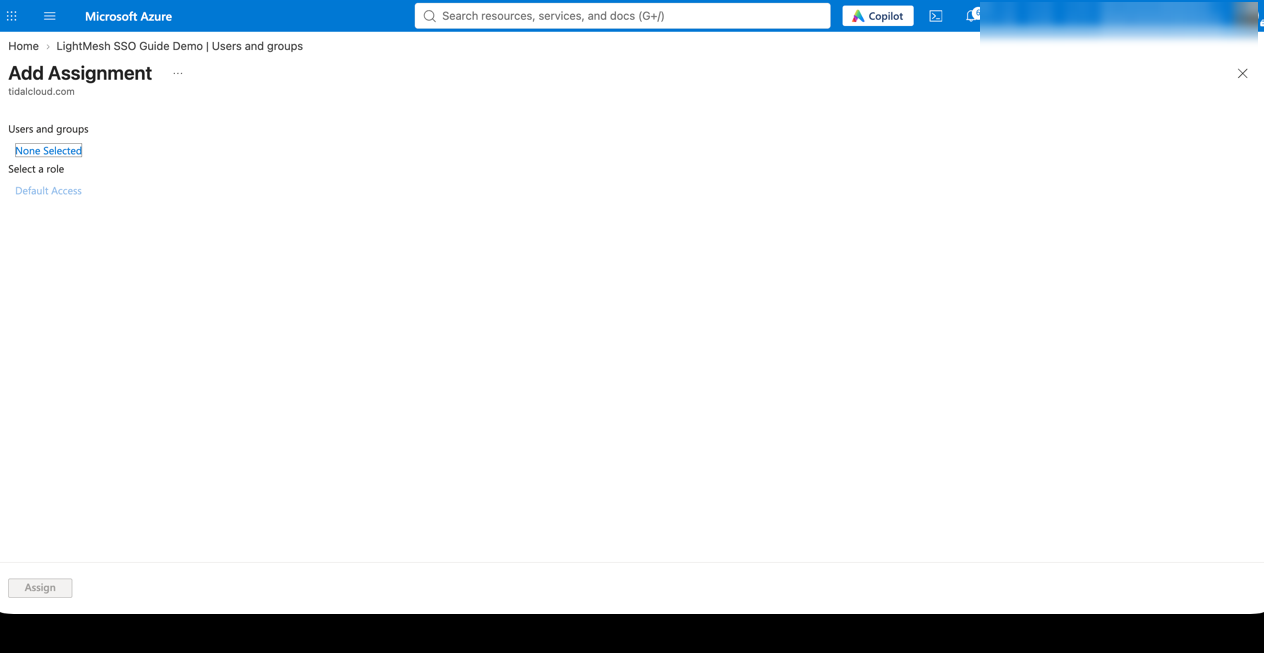
- Open Users and groups, then assign only the users or groups that should use LightMesh.
6. API permissions
Secret mode only needs the default delegated Microsoft Graph permission User.Read. You do not need application permissions or admin consent for LightMesh sign-in.
Then configure LightMesh with either the UI or environment variables (secret columns).
Azure AD type: certificate-based
1. App registration (single tenant)
Register with Accounts in this organizational directory only (Single tenant).
2. Client ID and Tenant ID
3. Redirect URI
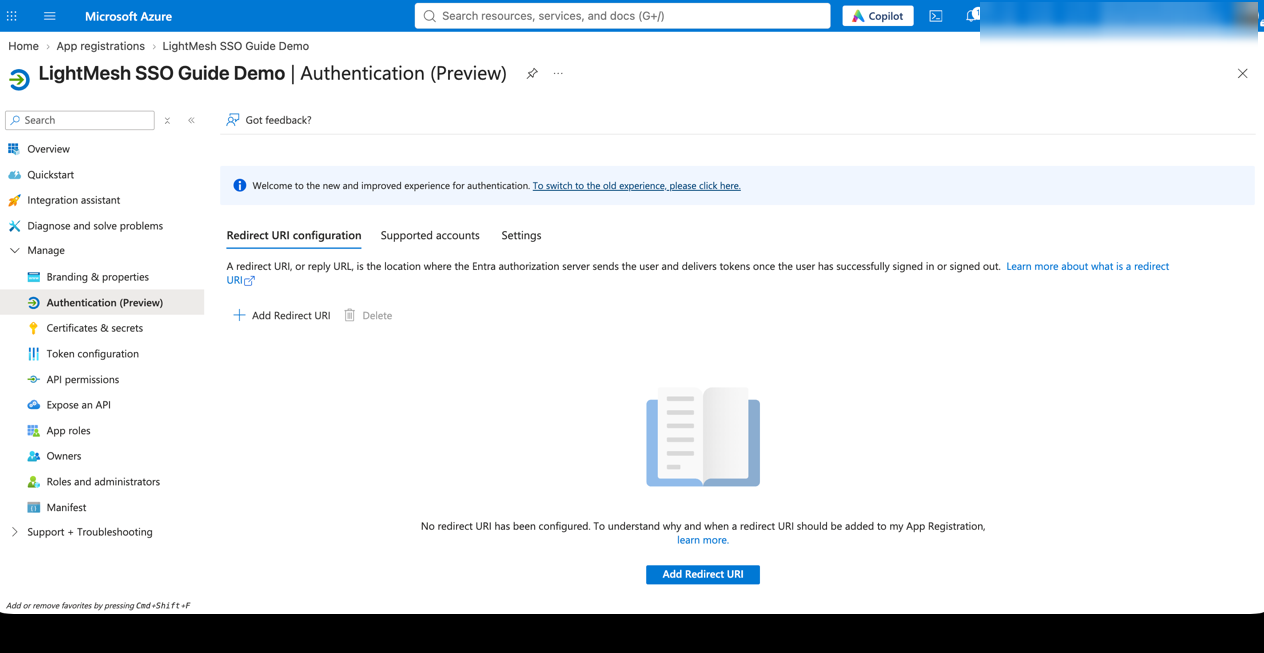
Add a Web redirect URI (certificate / MSAL flow — not the secret callback):
https://<your-lightmesh-client-host>/auth/redirectLocal example: http://localhost:3000/auth/redirect
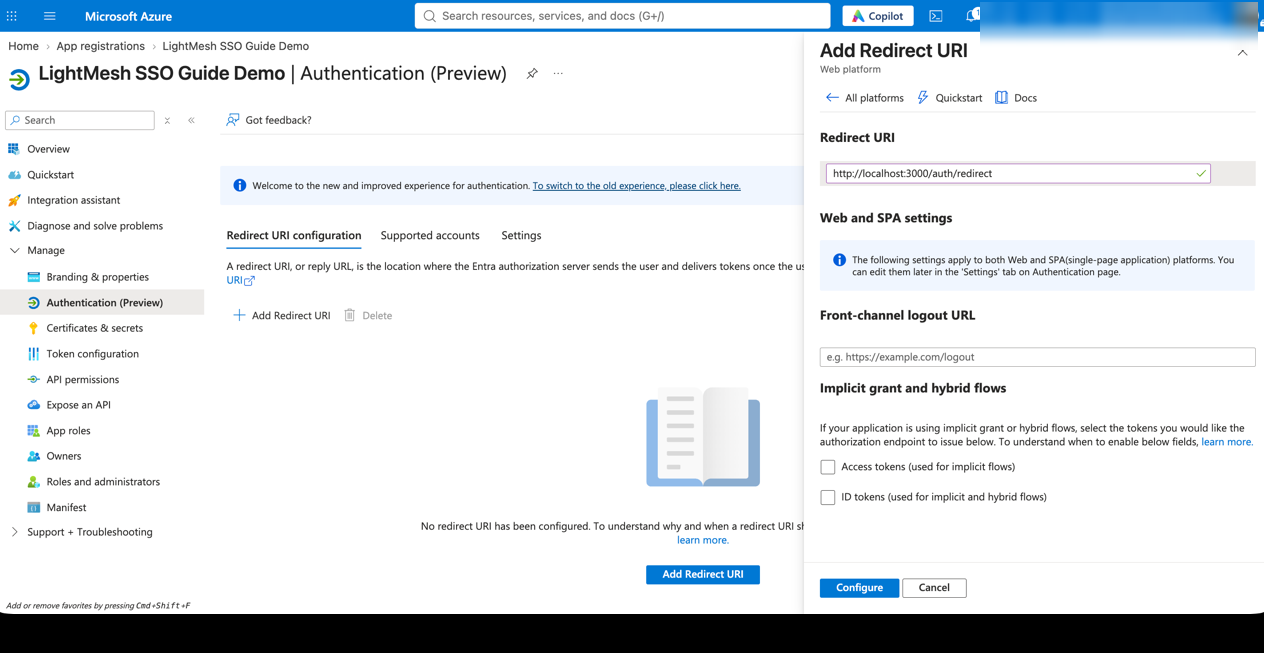
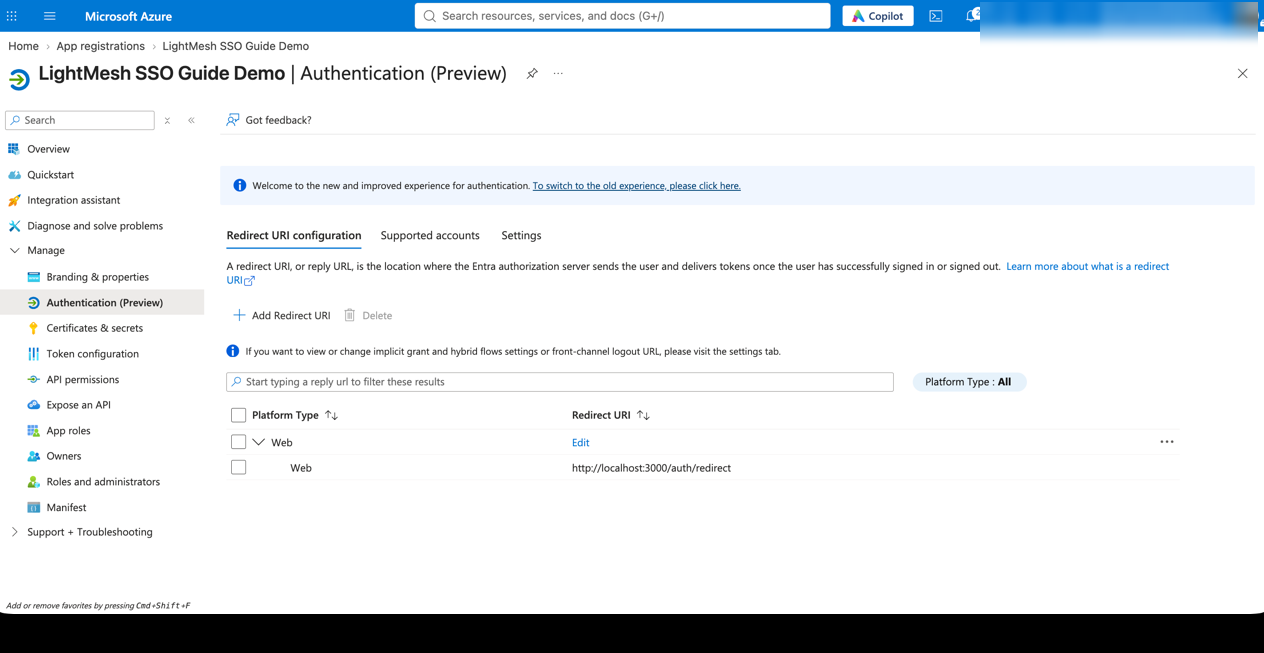
You can register both redirect URIs on the same Azure app. LightMesh only enables one type at a time — if secret is already saved and enabled, remove that saved config before enabling certificate (and the other way around).
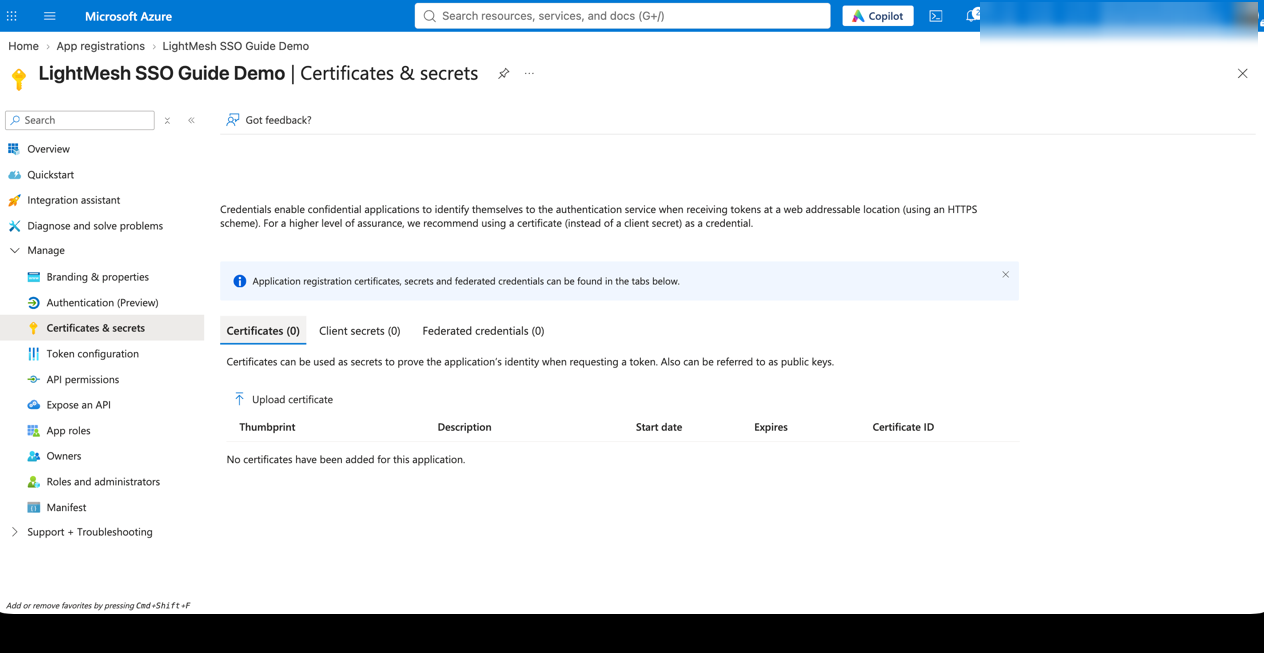
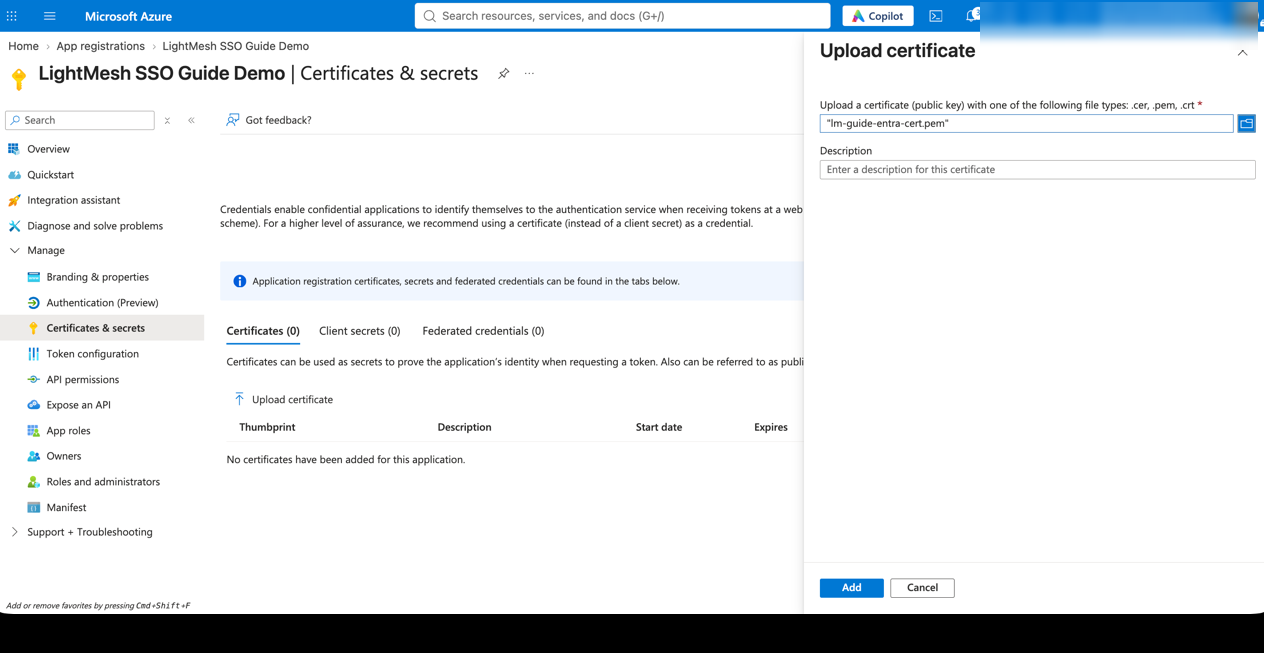
4. Upload the public certificate
Upload the public cert under Certificates & secrets → Certificates. Keep the private key only on the LightMesh host.
5. Thumbprint
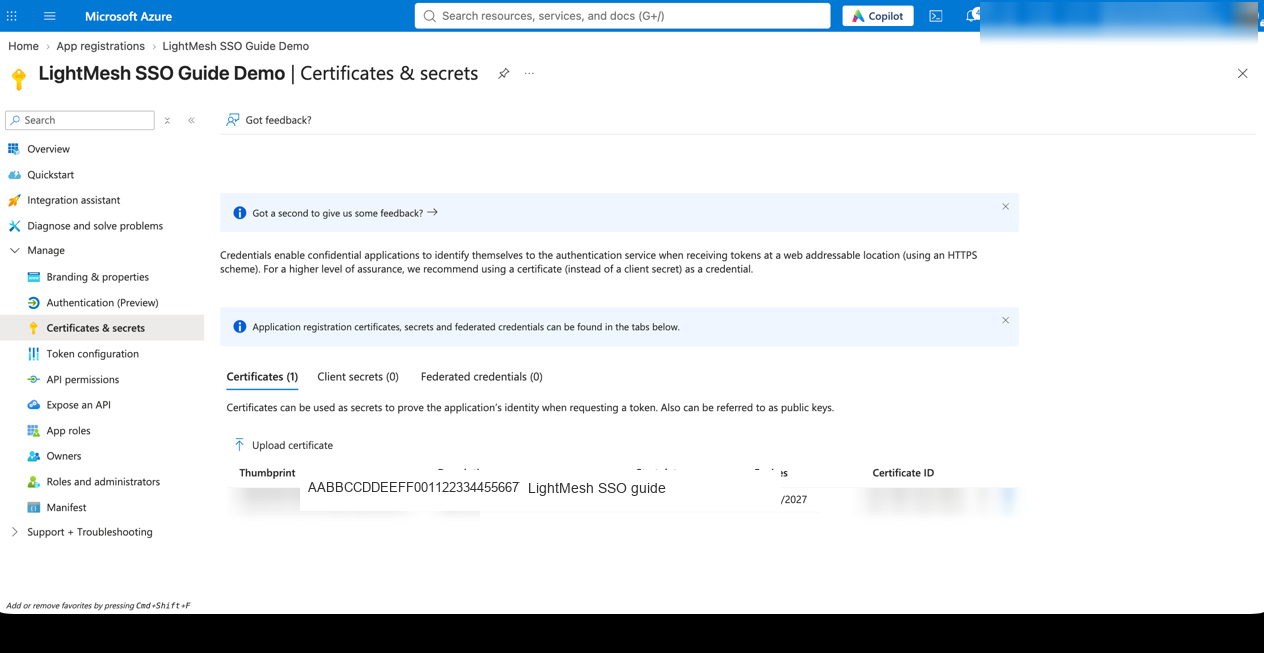
Copy the certificate thumbprint (SHA-1).
- UI: paste as shown (with or without colons). LightMesh strips colons, spaces, and hyphens on paste.
- Environment variable (
AZURE_THUMBPRINT): store the value without colons.
6. Private key for LightMesh
# Create key + cert if you do not already have them
# -nodes writes an unencrypted key (quick start). Prefer encrypting the key and
# setting AZURE_PASSPHRASE / the UI passphrase field, then delete key.pem after
# you base64 it into LightMesh.
openssl req -newkey rsa:2048 -nodes -keyout key.pem -x509 -days 365 -out cert.pem

# Optional: encrypt the private key instead of -nodes
# openssl genrsa -aes256 -out key.pem 2048
# openssl req -new -x509 -key key.pem -out cert.pem -days 365

# Thumbprint (UI strips colons on paste; for AZURE_THUMBPRINT remove colons)
openssl x509 -in cert.pem -fingerprint -sha1 -noout

# Base64-encode the private key for LightMesh
base64 < key.pem | tr -d '\n'
Upload only cert.pem to Azure. Store the base64 private key in LightMesh (UI or AZURE_CERT_KEY). Delete local key.pem after you have stored the base64 value securely.
7. Who can sign in and API permissions
Same as secret mode: on the enterprise application Properties, set Assignment required? to Yes; in Users and groups, assign only the groups that should use LightMesh; keep API permissions minimal. Certificate mode requests OIDC scopes openid profile email offline_access at sign-in — no application permissions or admin consent are required for LightMesh.
8. Authority URL (workforce vs External ID)
LightMesh needs the correct authority:
| Tenant type | Authority |
|---|---|
| Workforce Entra (typical App registrations / single-tenant directory shown in these screenshots) | https://login.microsoftonline.com/<Directory-tenant-ID>/ — set this as AUTHORITY (env) or Authority URL (UI). |
| Entra External ID (CIAM) | Leave blank to use https://<AZURE_TENANT>.ciamlogin.com/<AZURE_TENANT>.onmicrosoft.com/, or paste that full URL. A bare https://….ciamlogin.com/ host without a tenant path will fail discovery. |
If you leave Authority empty on a workforce tenant, LightMesh defaults to the CIAM-style URL and OpenID discovery will fail.
Then configure LightMesh with either the UI or environment variables (certificate columns).
LightMesh: from the UI
Requirement: Azure AD is not how you create the first admin. Create (or keep) an organization Owner / Administrator that can sign in without Azure AD — typically email/password. Sign in with that account, then enable Azure AD. Prefer INVITE_ONLY=true before you turn Microsoft login on (see the note at the top of this page).
- Open Account → Sign-in Methods. You should see the Microsoft / Azure AD row (Disabled until you save and enable — or Enabled if environment variables already drive login).
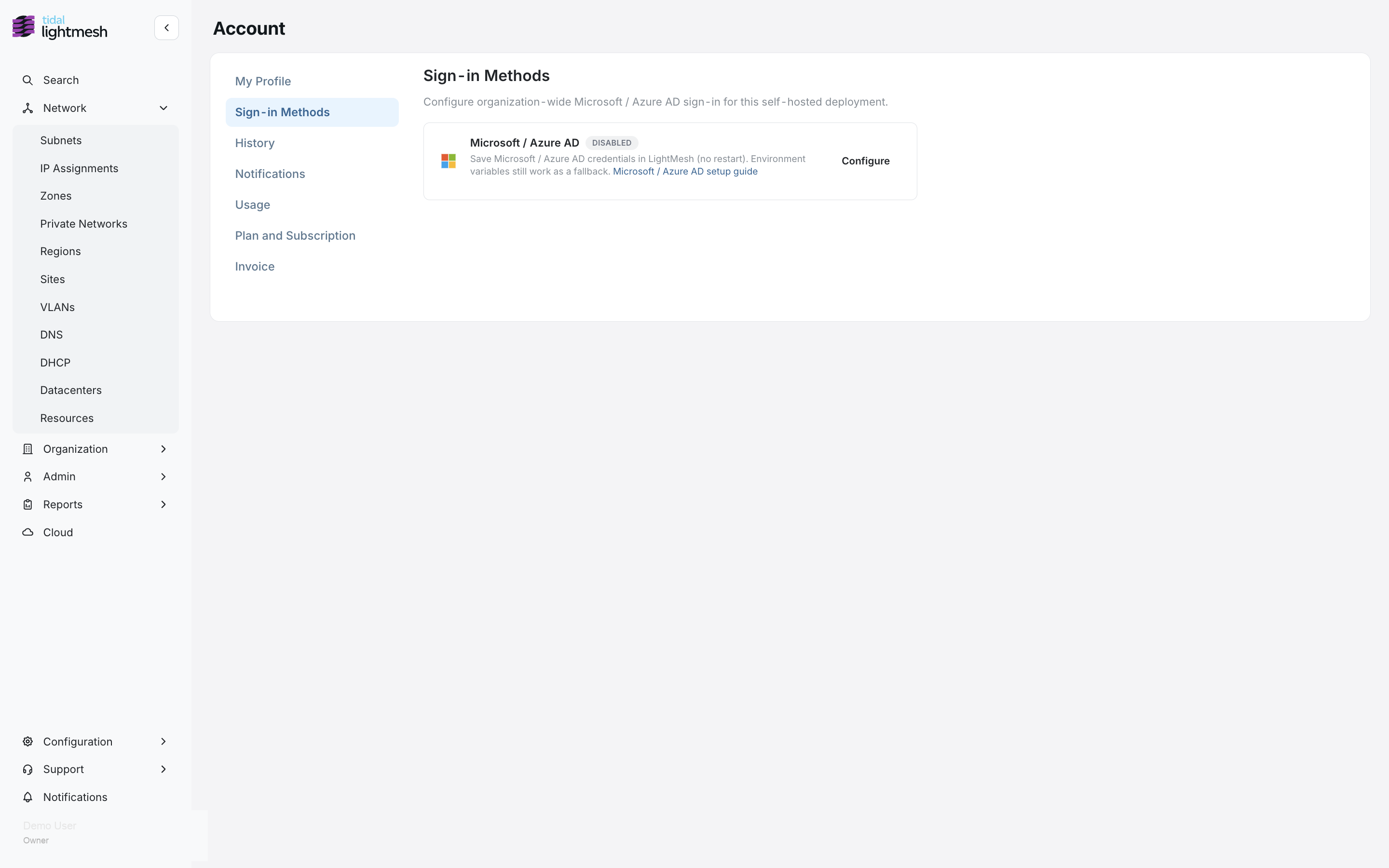
- Click Configure.
- Choose Secret or Certificate (must match what you set up in Azure). LightMesh allows only one mode enabled at a time. If the other mode is already saved and enabled, the modal warns you to Remove saved config before enabling the new mode.
- Paste the Azure values. The modal shows the redirect URI to register in Azure if you have not already. Env values are not prefilled — re-enter them when migrating from environment variables.
- Click Test connection to check tenant/authority reachability (and that a certificate private key loads) before you turn login on. See Test connection.
- Click Save and enable.
When the config is already enabled, the same modal shows Save changes, Test connection, Disable, and Remove saved config.
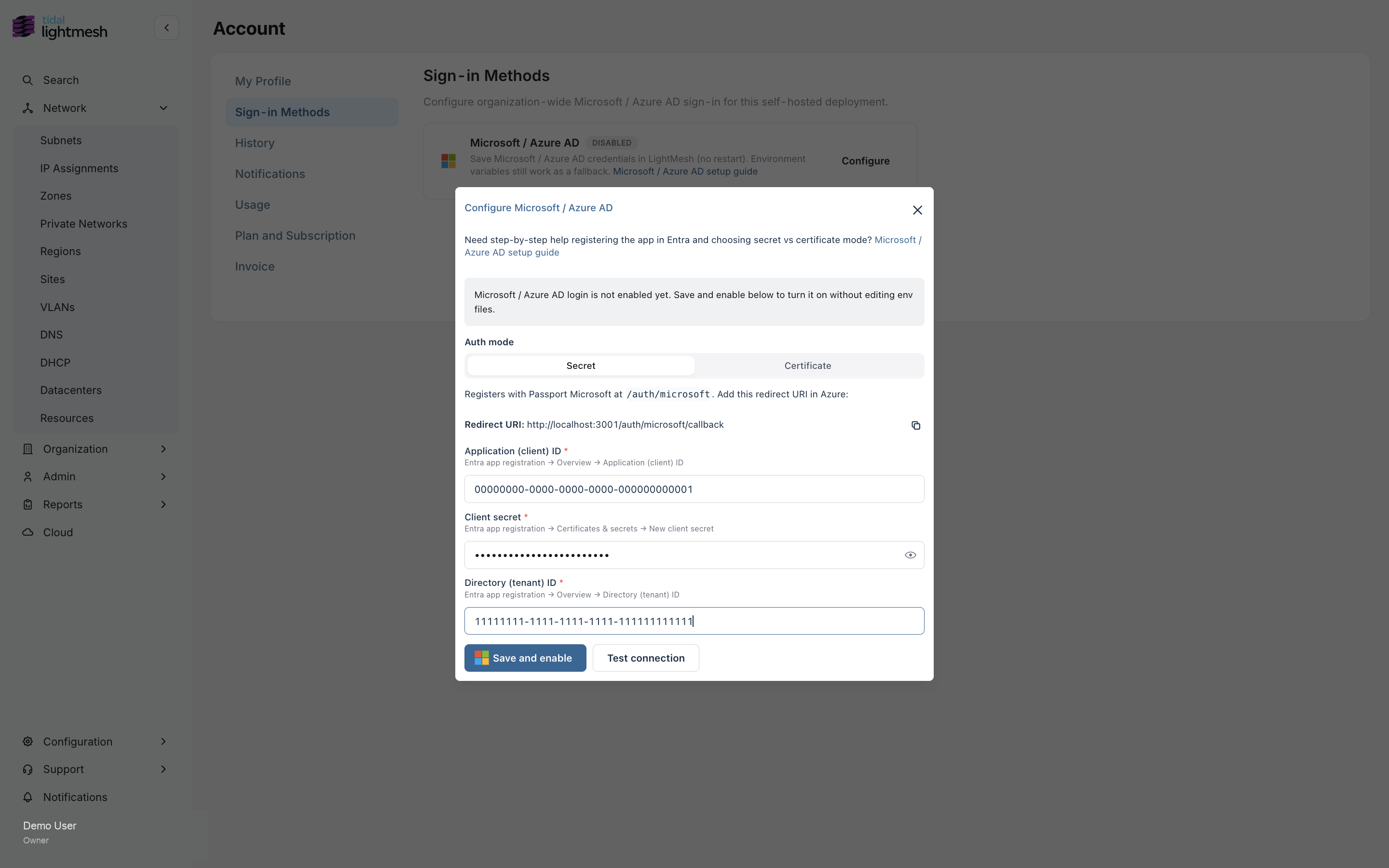
UI — secret-based
Auth mode Secret. Enter Application (client) ID, client secret, and your Directory (tenant) ID GUID or domain — never common / organizations / consumers. Redirect URI is {API_URL}/auth/microsoft/callback. Use Test connection, then Save and enable.
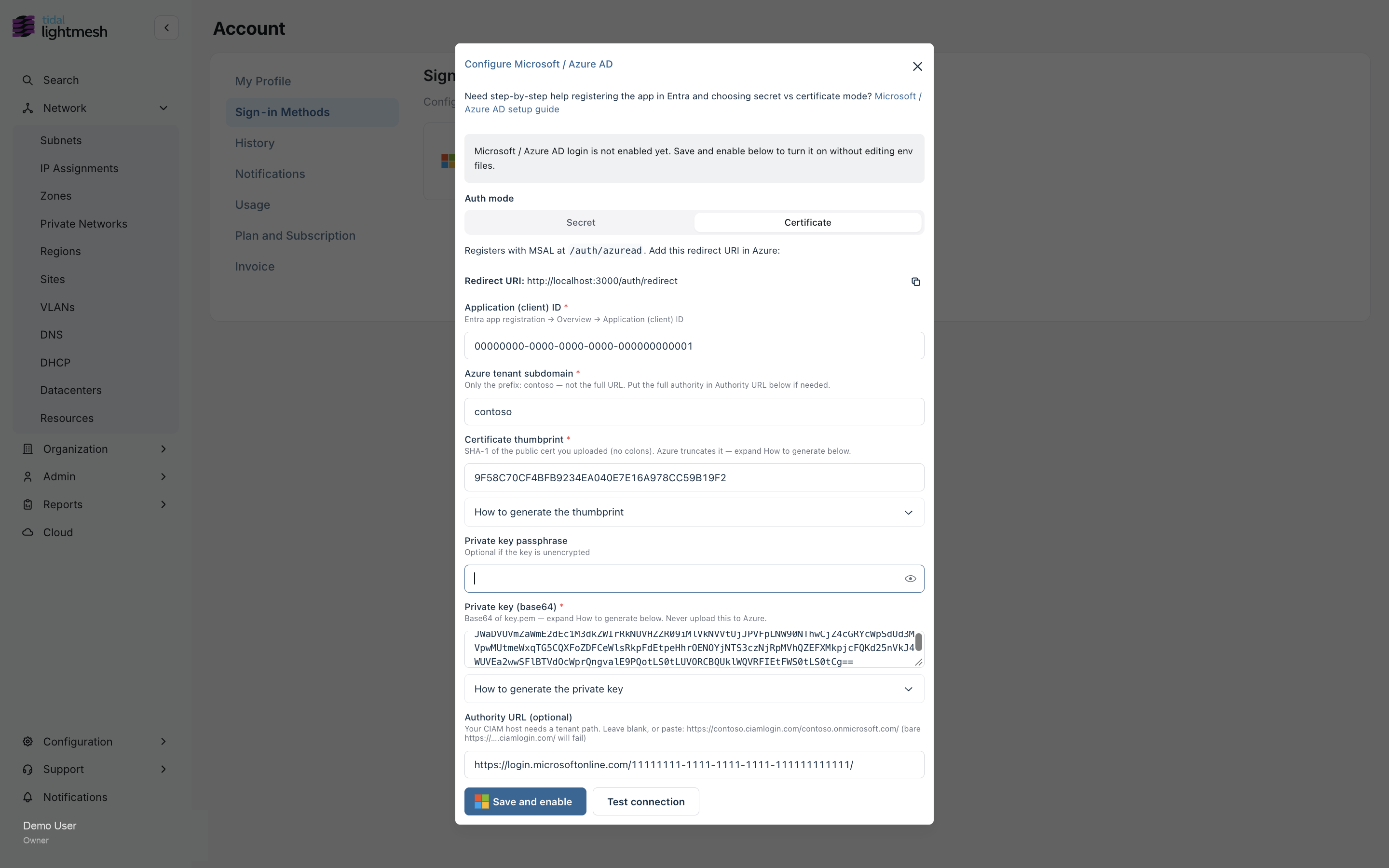
UI — certificate-based
Auth mode Certificate. Enter Application (client) ID, Azure tenant subdomain, thumbprint, and base64 private key. Redirect URI is {CLIENT_URL}/auth/redirect. Paste the thumbprint with or without colons — the UI normalizes it.
Authority URL:
- Workforce Entra: set
https://login.microsoftonline.com/<Directory-tenant-ID>/. - Entra External ID (CIAM): leave blank or paste
https://<subdomain>.ciamlogin.com/<subdomain>.onmicrosoft.com/.
Use Test connection (and Save changes when already enabled).
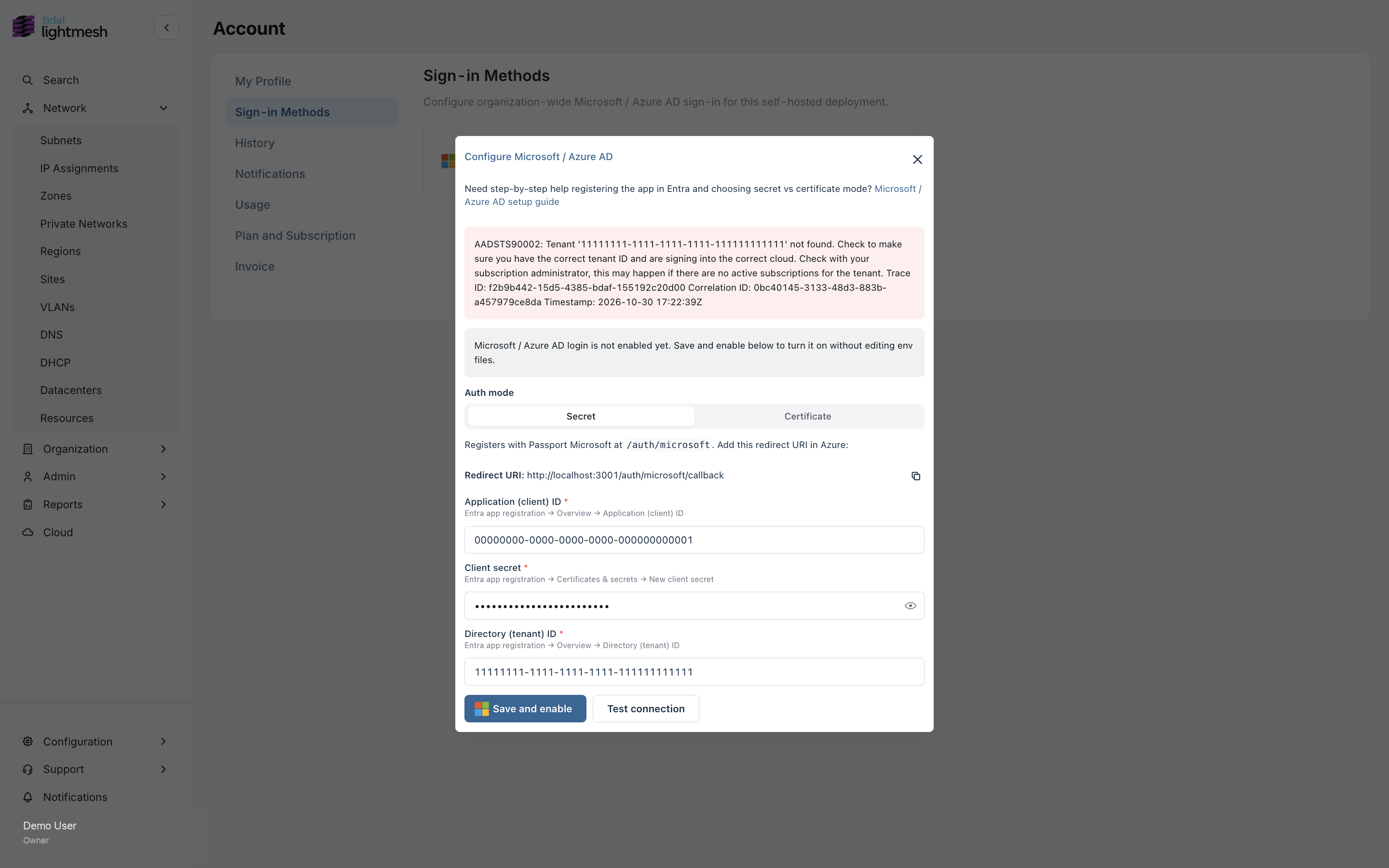
Test connection
Test connection does not fully validate credentials:
- Secret mode: checks that the tenant’s OpenID discovery URL answers. The client secret is verified only on the first real sign-in.
- Certificate mode: checks that the private key loads and the authority’s OpenID discovery answers. The thumbprint match is verified when a user signs in.
Fix any error it returns, then Save and enable (or Save changes if already enabled).
No restart after a successful save — LightMesh reloads the auth config.
Moving from environment variables to the UI
Existing installs that already use env vars keep working. LightMesh does not copy those values into Sign-in Methods automatically.
- Sign in as Owner/Admin (email/password or another non–Azure AD method).
- Open Account → Sign-in Methods. The Microsoft / Azure AD row shows Enabled with copy that login is driven by environment variables.
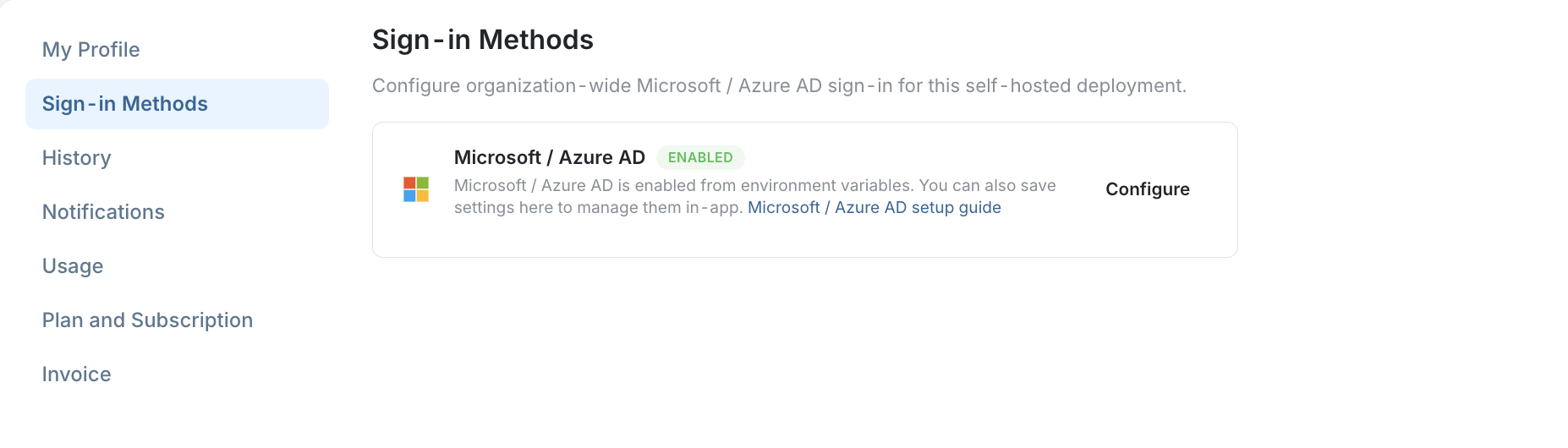
- Click Configure. Fields start empty. A blue notice explains that env vars are in use and that Save and enable takes precedence over them (no restart).
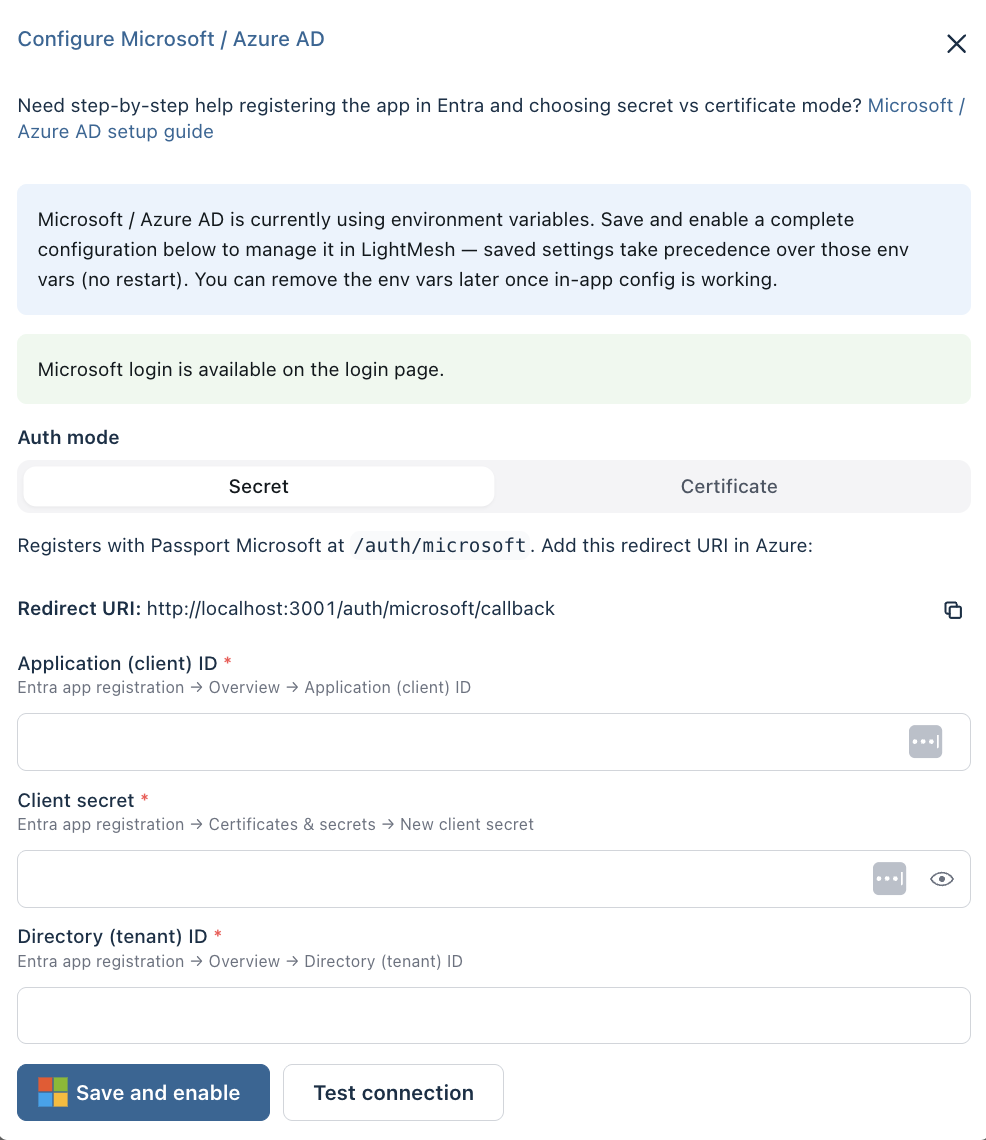
- Enter the same Azure values (secret or certificate), run Test connection, then Save and enable.
- Confirm status becomes enabled from saved deployment settings. Env vars are ignored for credentials while that UI config stays enabled.
- After a successful login test, remove the old env vars and restart when convenient so you are not maintaining two sources of truth.
Caution: an enabled but incomplete UI config fails closed — LightMesh does not fall back to env. Fix or Remove saved config if login breaks after a partial save.
LightMesh: from environment variables
Use when you prefer env-based config, or before any UI admin exists that can reach Sign-in Methods. Restart LightMesh after changes.
If an in-app config is enabled, it takes precedence over env for that mode. Env-only installs do not need the UI. To manage the same setup in-app later, see Moving from environment variables to the UI.
Also set INVITE_ONLY=true unless you intentionally want first-time Microsoft users auto-created as Owner/admin (see the note at the top of this page).
Secret-based
| Variable | Purpose |
|---|---|
MICROSOFT_CLIENT_ID |
Application (client) ID |
MICROSOFT_CLIENT_SECRET |
Client secret value |
AAD_TENANT_ID |
Required. Your Directory (tenant) ID GUID or verified domain. Do not use common, organizations, or consumers — those allow any Microsoft account to complete sign-in. |
REACT_APP_MICROSOFT_LOGIN=true |
Show Microsoft on the login page |
REACT_APP_API_URL |
Must match the host in /auth/microsoft/callback |
Certificate-based
| Variable | Purpose |
|---|---|
AZURE_CLIENT_ID |
Application (client) ID |
AZURE_TENANT |
Tenant subdomain (e.g. contoso) |
AZURE_THUMBPRINT |
Certificate thumbprint without colons (env does not strip separators) |
AZURE_CERT_KEY |
Base64-encoded PEM private key |
AZURE_PASSPHRASE |
Optional private-key passphrase (use when the key is encrypted) |
AUTHORITY |
Workforce Entra: https://login.microsoftonline.com/<tenant-id>/. External ID / CIAM: omit to use the default https://<AZURE_TENANT>.ciamlogin.com/<AZURE_TENANT>.onmicrosoft.com/, or set that full URL. |
REACT_APP_AZURE_LOGIN=true |
Show Azure AD on the login page |
CLIENT_URL |
Must match the host used in /auth/redirect |
Verify
- Login page shows the Microsoft and/or Azure AD button for the type you enabled.
- Sign in and confirm you land in the app.
- On failure, check: redirect URI exact match (
http/https, host, path); secret vs certificate type matches Azure and LightMesh; for certificate, workforce vs CIAM authority is correct; invite-only and Entra assignment match your access policy.
Troubleshooting
| Symptom | Check |
|---|---|
| Cannot open Sign-in Methods / locked out | You need a non–Azure AD Owner/Admin first; or set env vars and restart |
| No Microsoft / Azure button | UI Save and enable, or env login flags + restart |
| Test connection fails | Tenant / authority discovery, or private key load (certificate). Secret and thumbprint are only fully checked at first sign-in |
| Unexpected new Owners after Microsoft login | Set INVITE_ONLY=true; use single-tenant app + Assignment required |
redirect_uri_mismatch |
Azure list vs {API}/auth/microsoft/callback or {CLIENT}/auth/redirect |
| Certificate / discovery errors | Workforce needs AUTHORITY=https://login.microsoftonline.com/<tenant-id>/; CIAM needs a tenant path on the ciamlogin host; for env strip thumbprint colons (UI strips on paste); private key base64; public cert uploaded |
| Env change has no effect | Restart after env edits; an enabled UI config overrides env — Disable or Remove saved config if you intend to use env again |
| Login broken after saving in UI; env still set | Enabled but incomplete UI config fails closed (no env fallback). Complete the fields and save, or Remove saved config to return to env |
| Cannot switch Secret ↔ Certificate | Remove the currently enabled saved config first, then configure the other mode |
identity_mismatch on login after a directory / tenant change |
Email matches an existing user but the stored Microsoft (or Google/Okta) provider id does not. An Owner/Administrator can clear that user’s link with the clearUserOAuthProvider GraphQL mutation, or with SQL such as UPDATE "Users" SET "microsoftId" = NULL WHERE email = '<user@example.com>'; (use googleId / oktaId for those providers). The user signs in again to re-link |